This article explains how to add an operator, who does not have a currenlt Bookeasy listing to your Destination's Bookeasy account.
Note: Tour Operators who use Rezdy, Fareharbor or a booking system connected via Livn are added to your Booking Centre in a different process. Refer to the Knowsledgebase Articles 'Connecting Rezdy Operators', 'Connecting Fareharbor Operators' and 'Connecting Livn Connections'.
Note: Prior communication with the Operator is essential, prior to adding to your Bookeasy account. During this communication you should discuss booking processes, your Booking Centre Terms & Conditions, Commission levels and your online booking presence.
Checking the Bookeasy Marketplace
- Ensuring the Operator does not currently exist in the Bookeasy Markietplace
- Log into your Bookeasy console.
- From the dashboard screen, placed your cursor in Operator Search
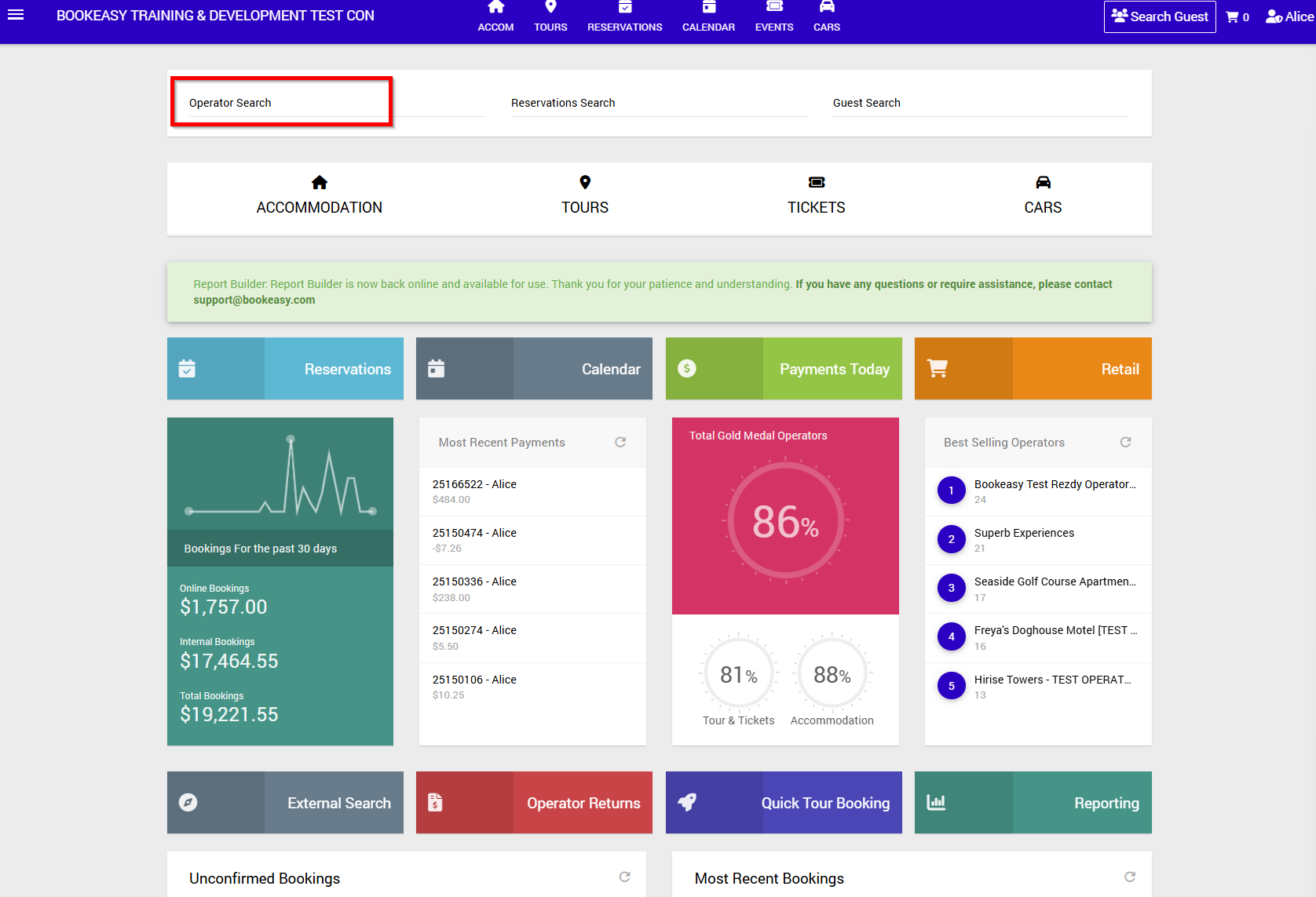
- Enter the Business Name [or part Business Name] of the Operator you wish to link to your Bookeasy Console.
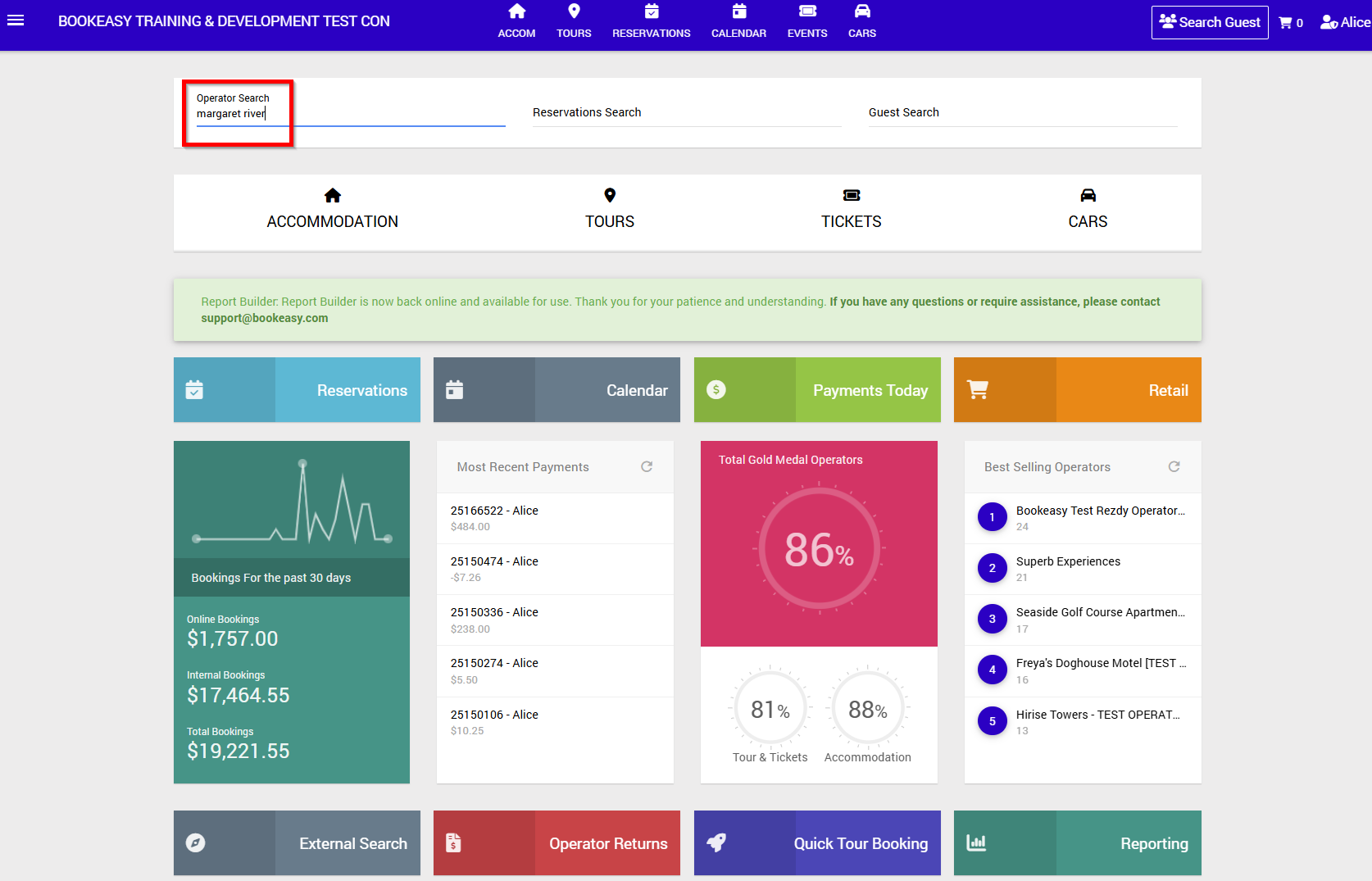
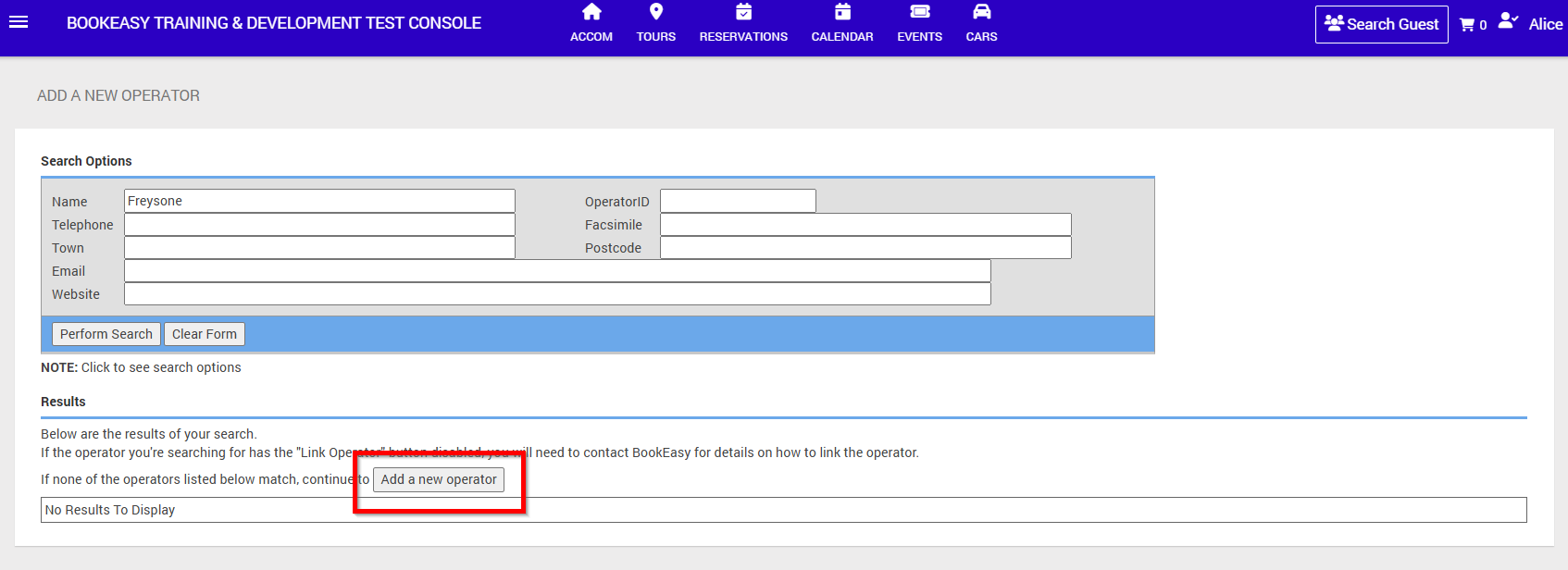
- 'No Results To Display' confirms this Operator is not already linked to your Bookeasy Console.
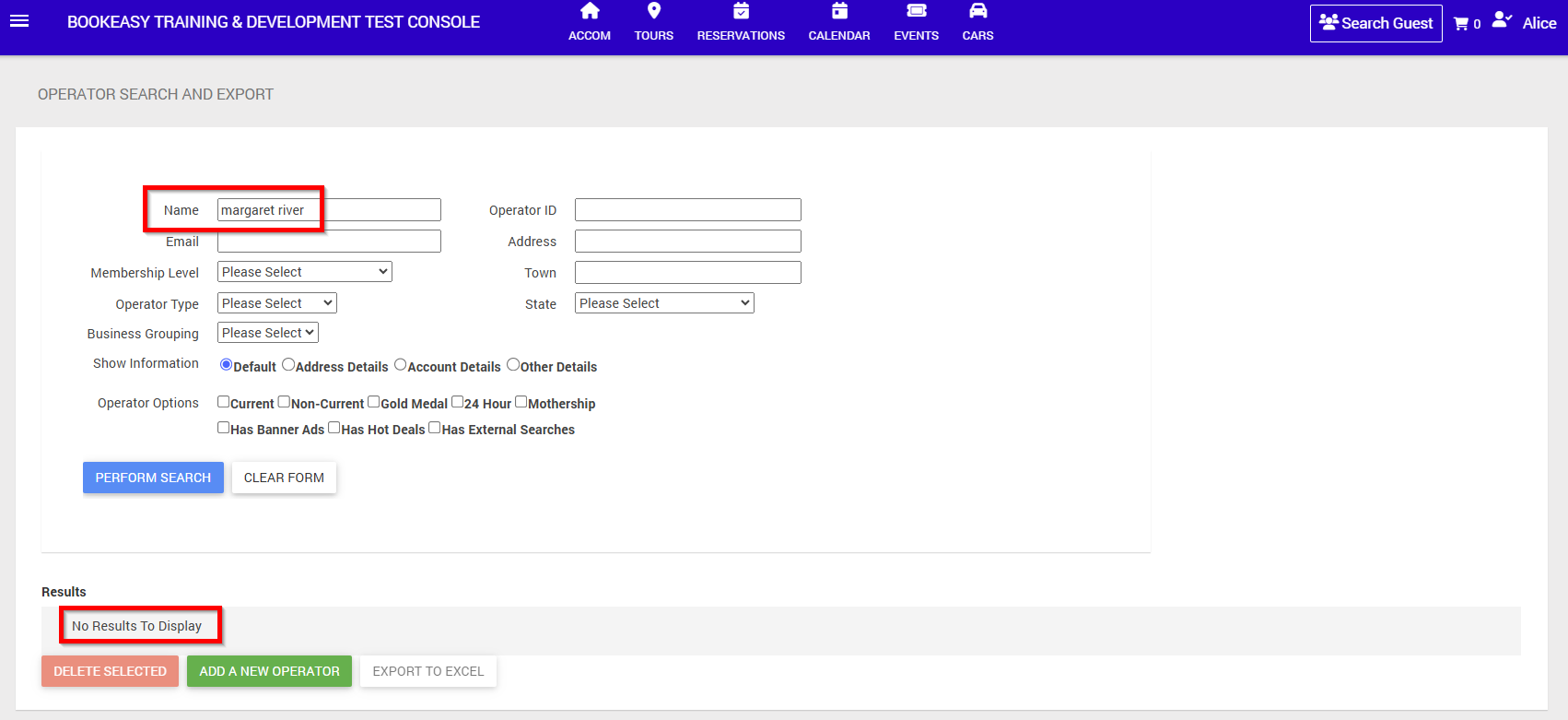
- Select Add a New Operator to proceed.
- A Search Screen will allow you to search the Bookeasy Mareketplace for this Operator.
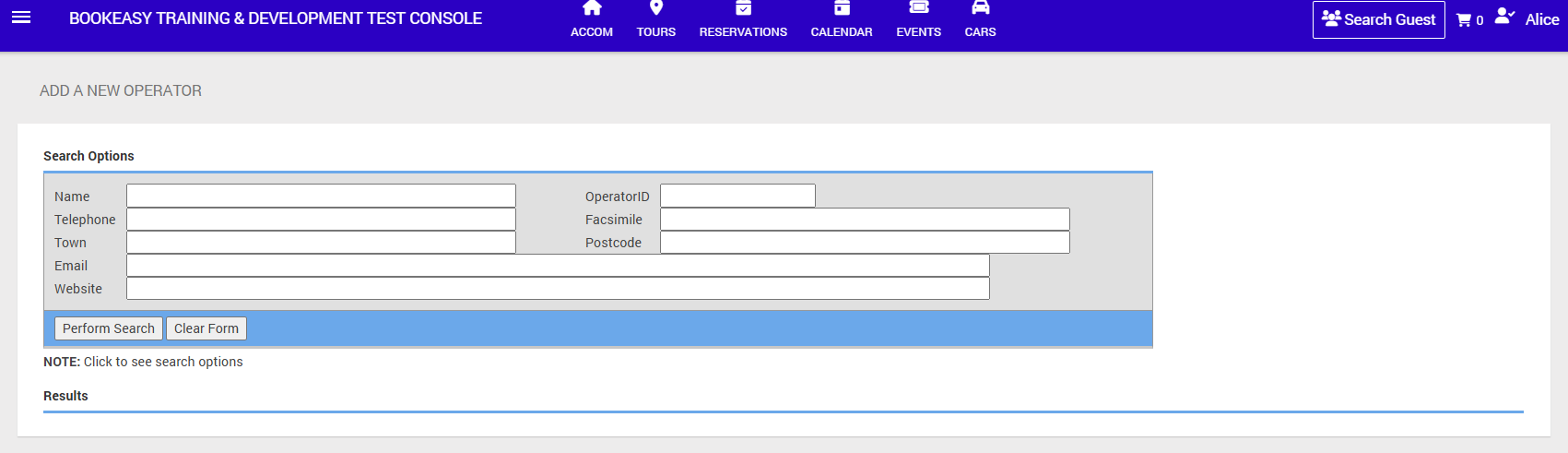
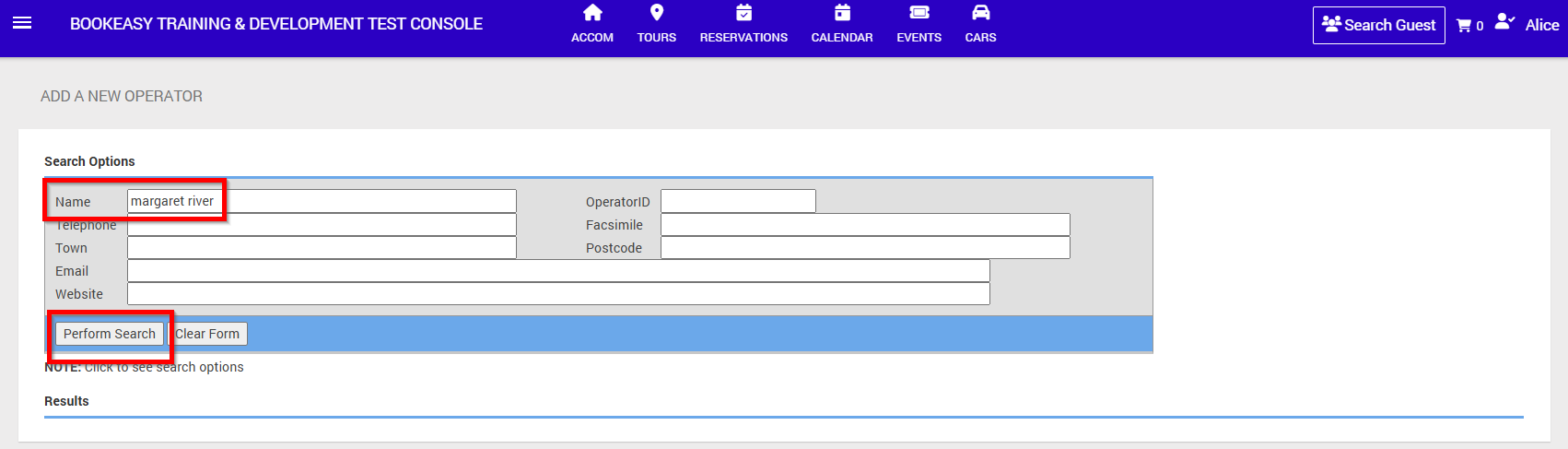
- Enter the Business Name [or Part Business Name], or Telephone, Town, Email, Website to filter the details of the Operator. Select Perform Search.
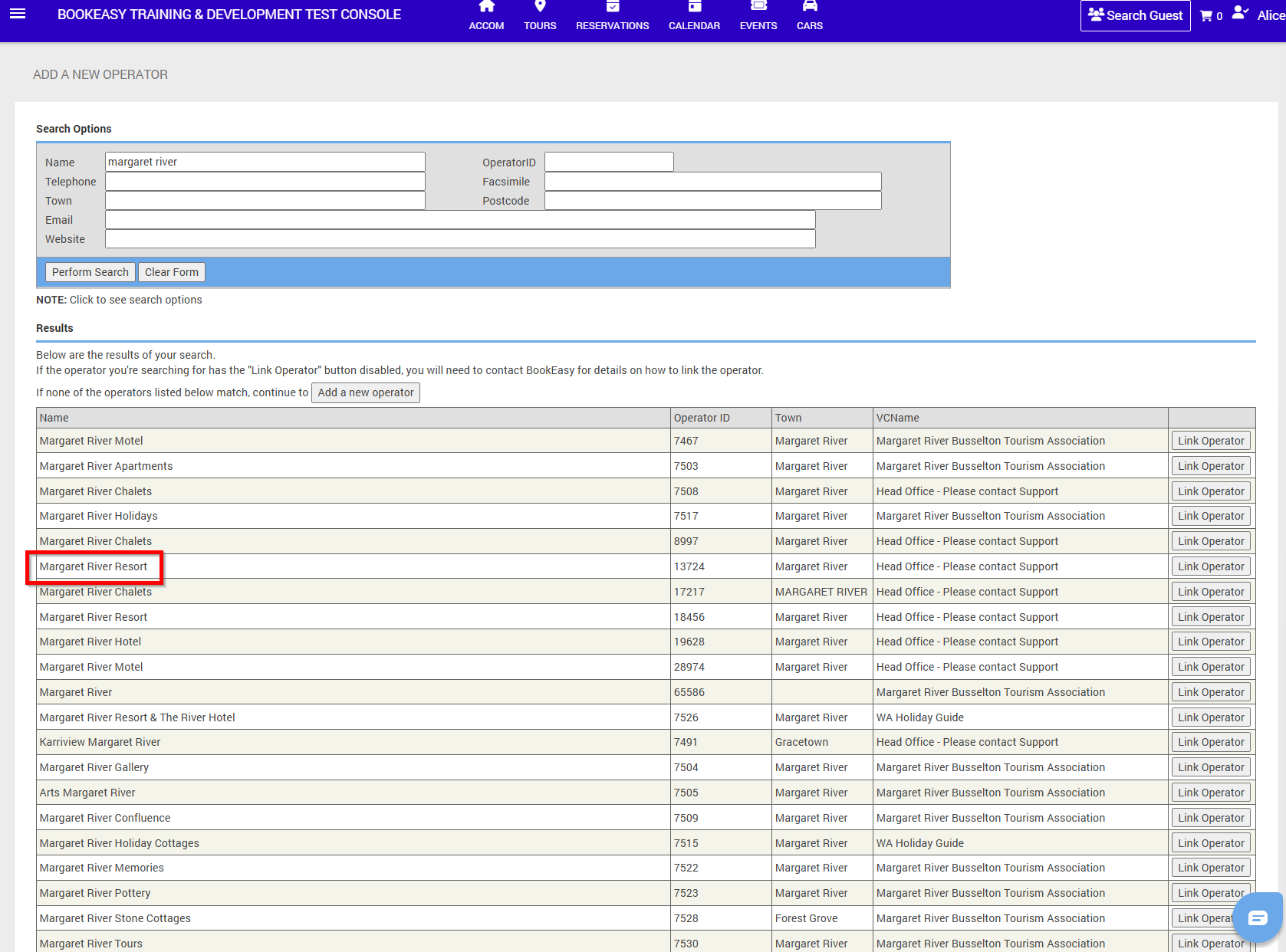
- The Operator will be listed if they have agreed to be part of the Bookeasy Marketplace. Refer to the Knowldegebase Article 'Linking an Existing Operator'
Adding the Operator
- Click on Adding a new operator.
- Compulsory fields are marked with an asterisk.
As a minimum, these fields must be completed.
Note:
Business Name - this is the Trading Name of the Business, and appears on correspondence and Tax Invoices
Email - Booking notifications are sent to this email address.
Business Location - flows through to the Google Map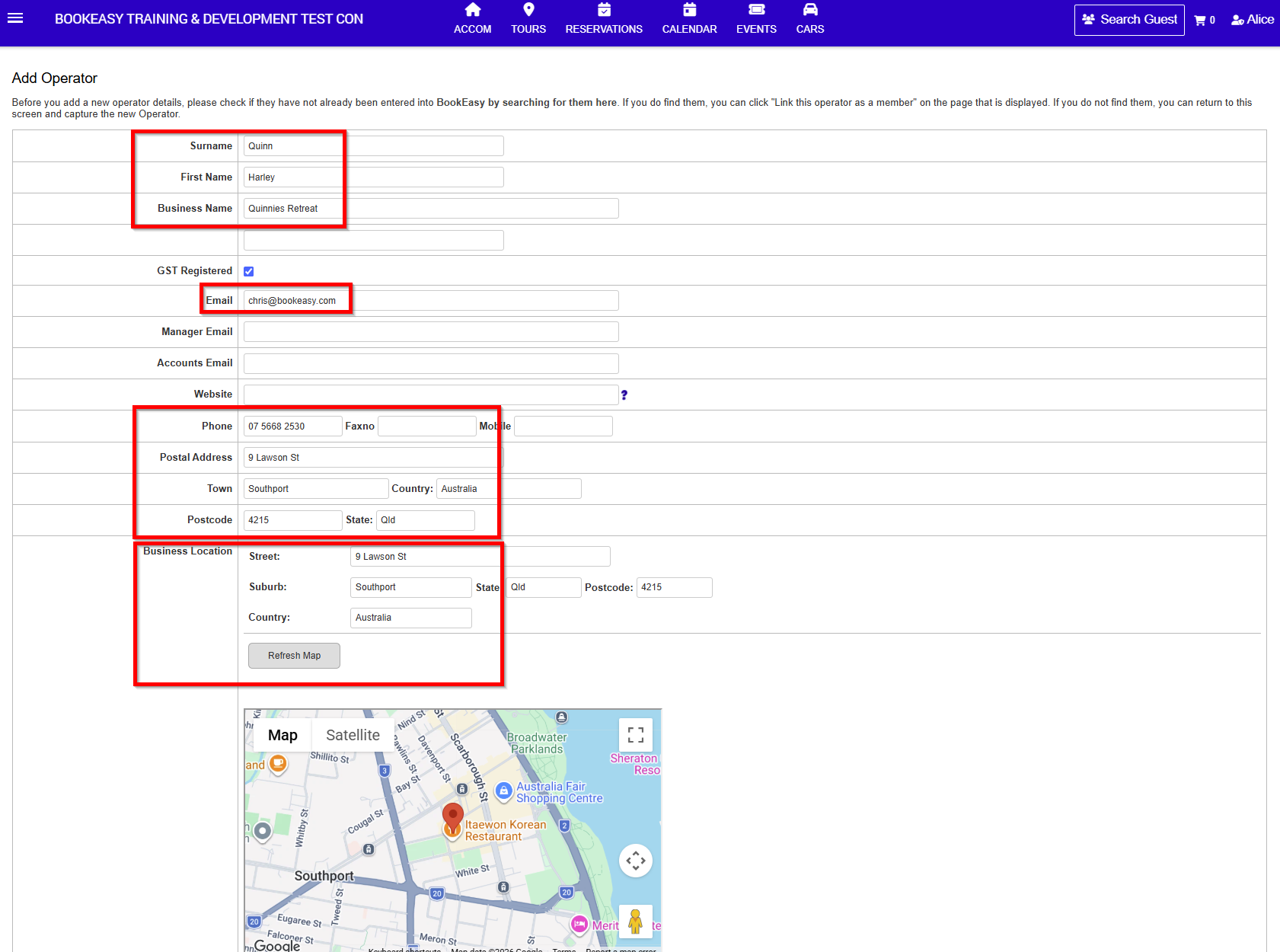
- Operator Type - Accommodation or Tour type must be selected to ensure the Operator has a bookable listing
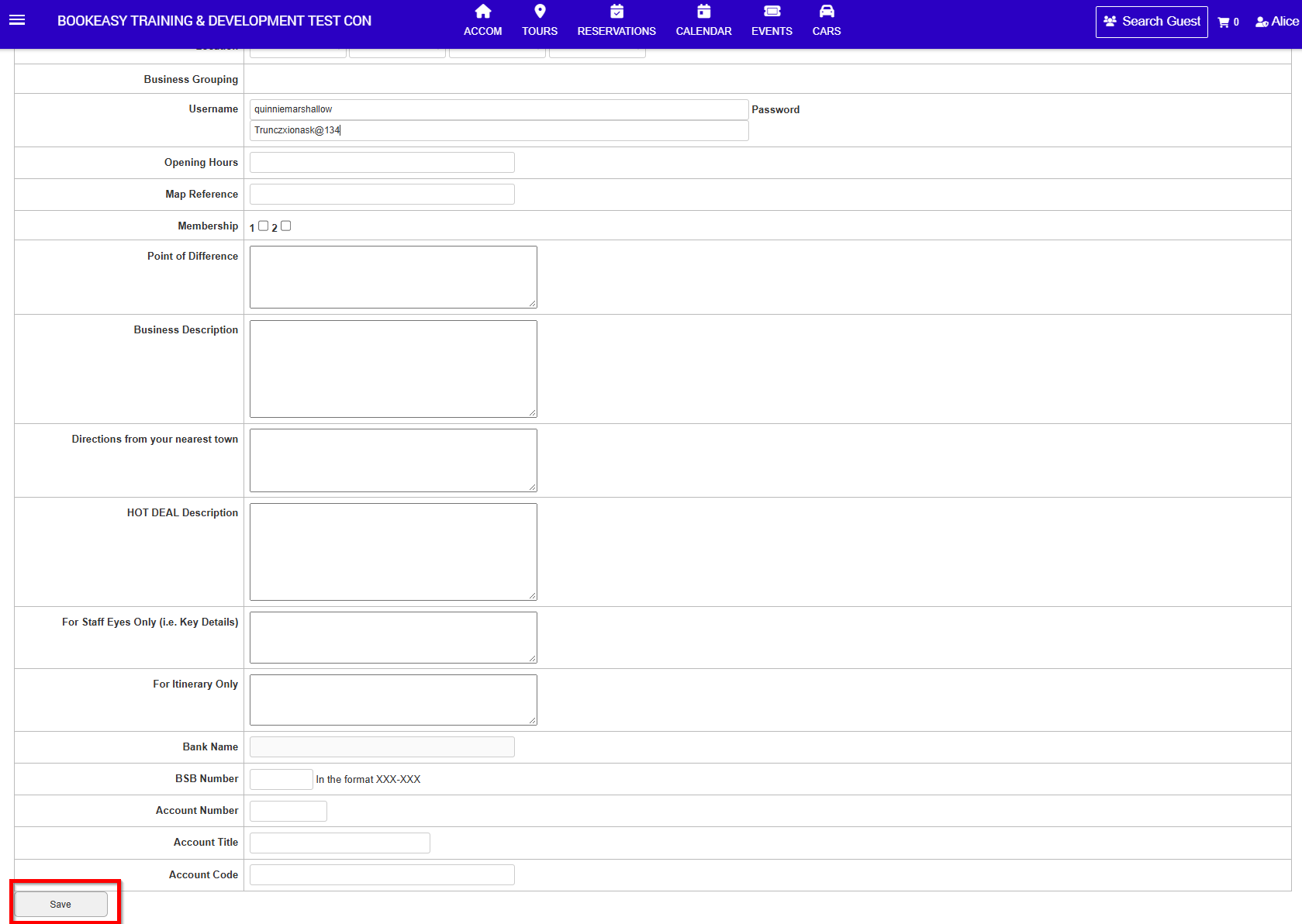
Username - once selected, this may not be changed. Ensure you select something secure, not just the name of the operator
Password - enter random text, as you will not be providing this to the operator. They will be setting their own password when they first login.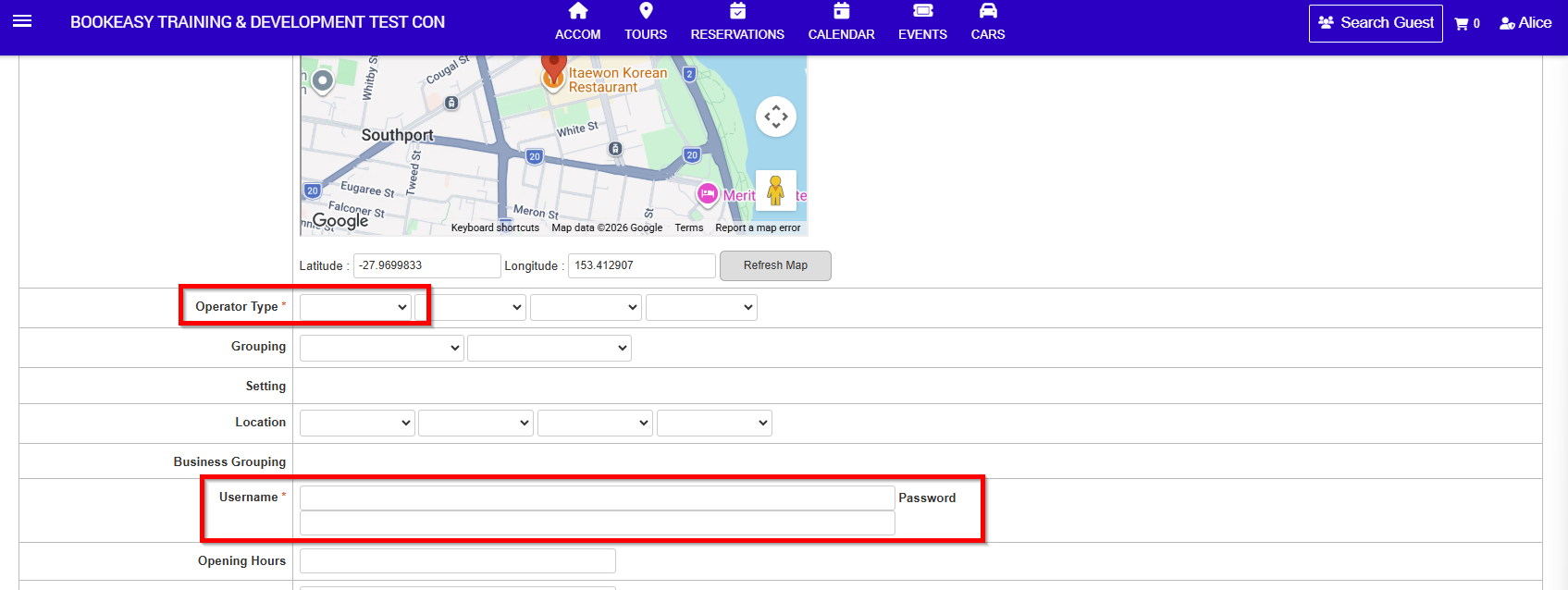
- Click Save
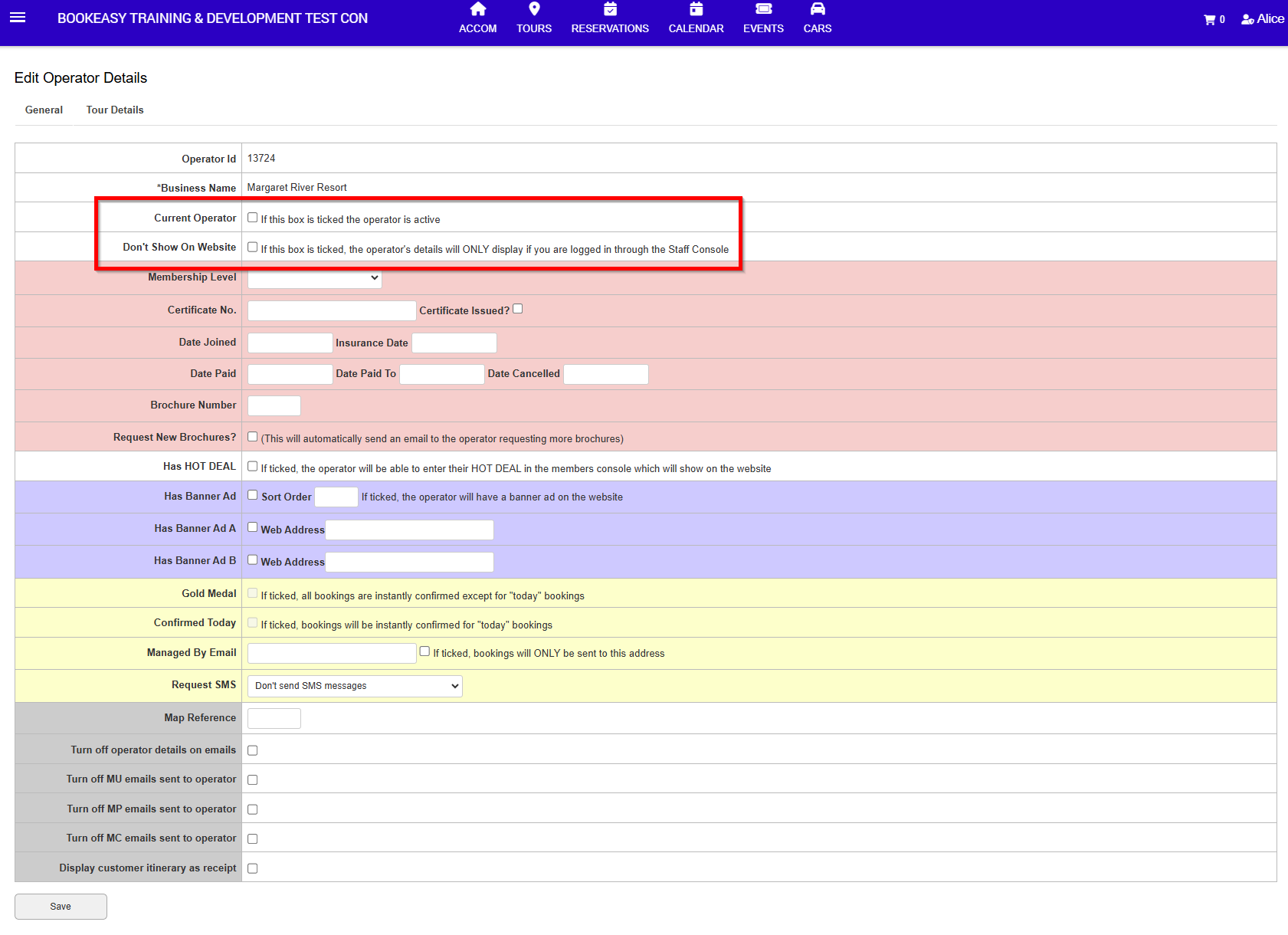
- Select Current Operator if the Operator is to be bookable via Booking Centre Staff and your destination booking engine.
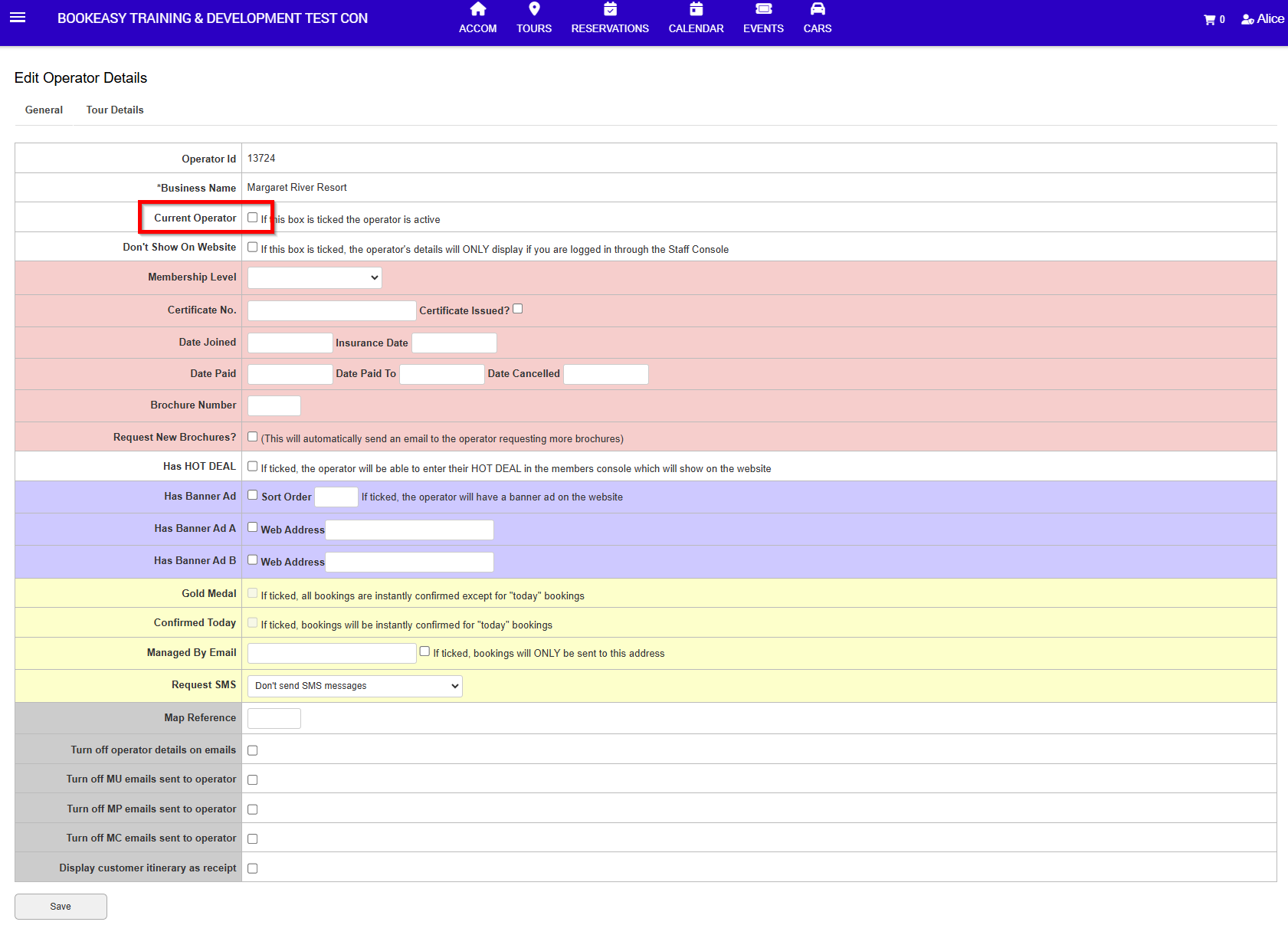
- Select Current Operator and Don't Show on Website if the Operator is to be bookable via Booking Centre Staff but not your destination booking engine
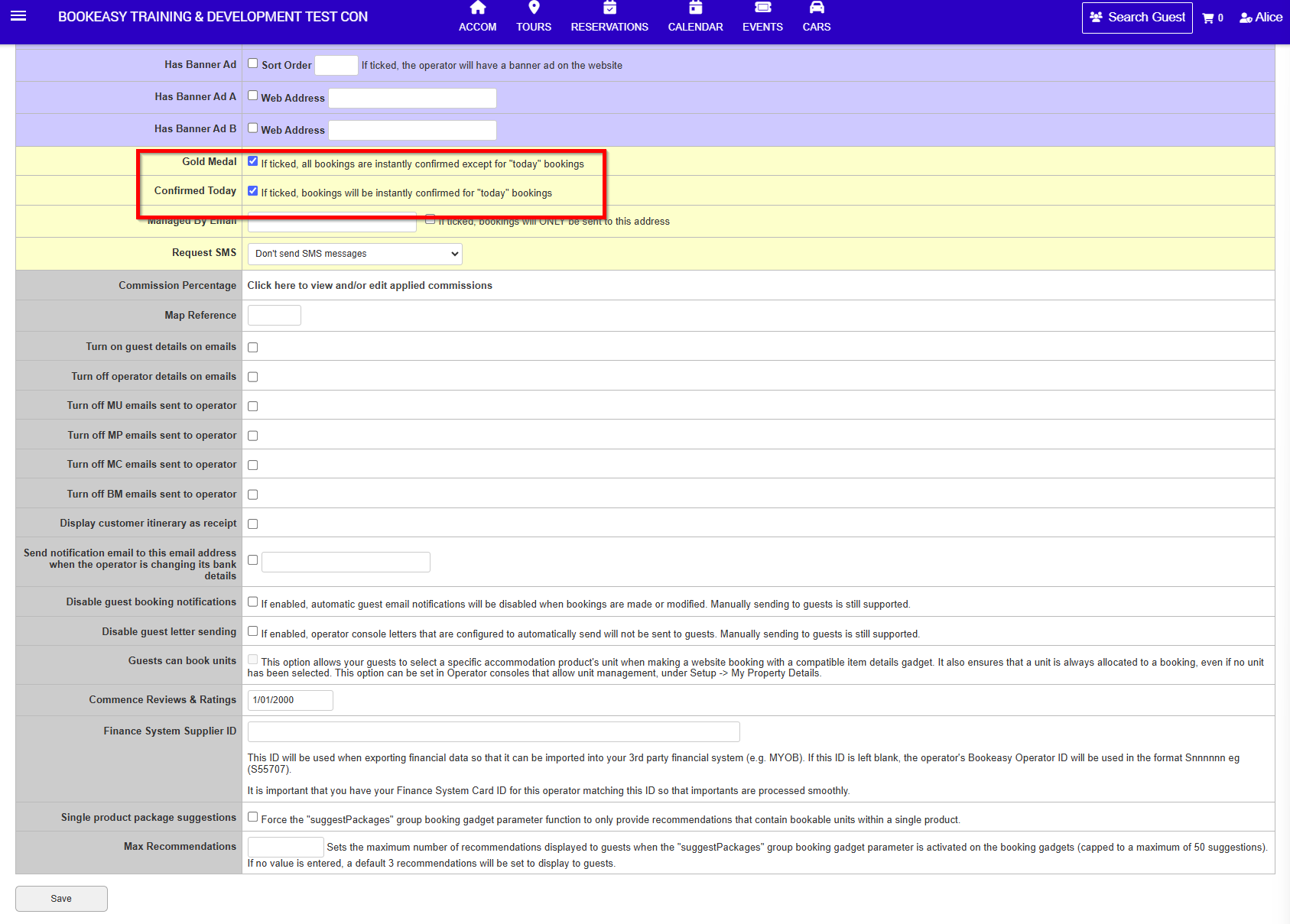
- Select Gold Medal if the Operator offers Instant Availability and Confirmed Today if the Operator also offers Instant Availability for Same Day Bookings.
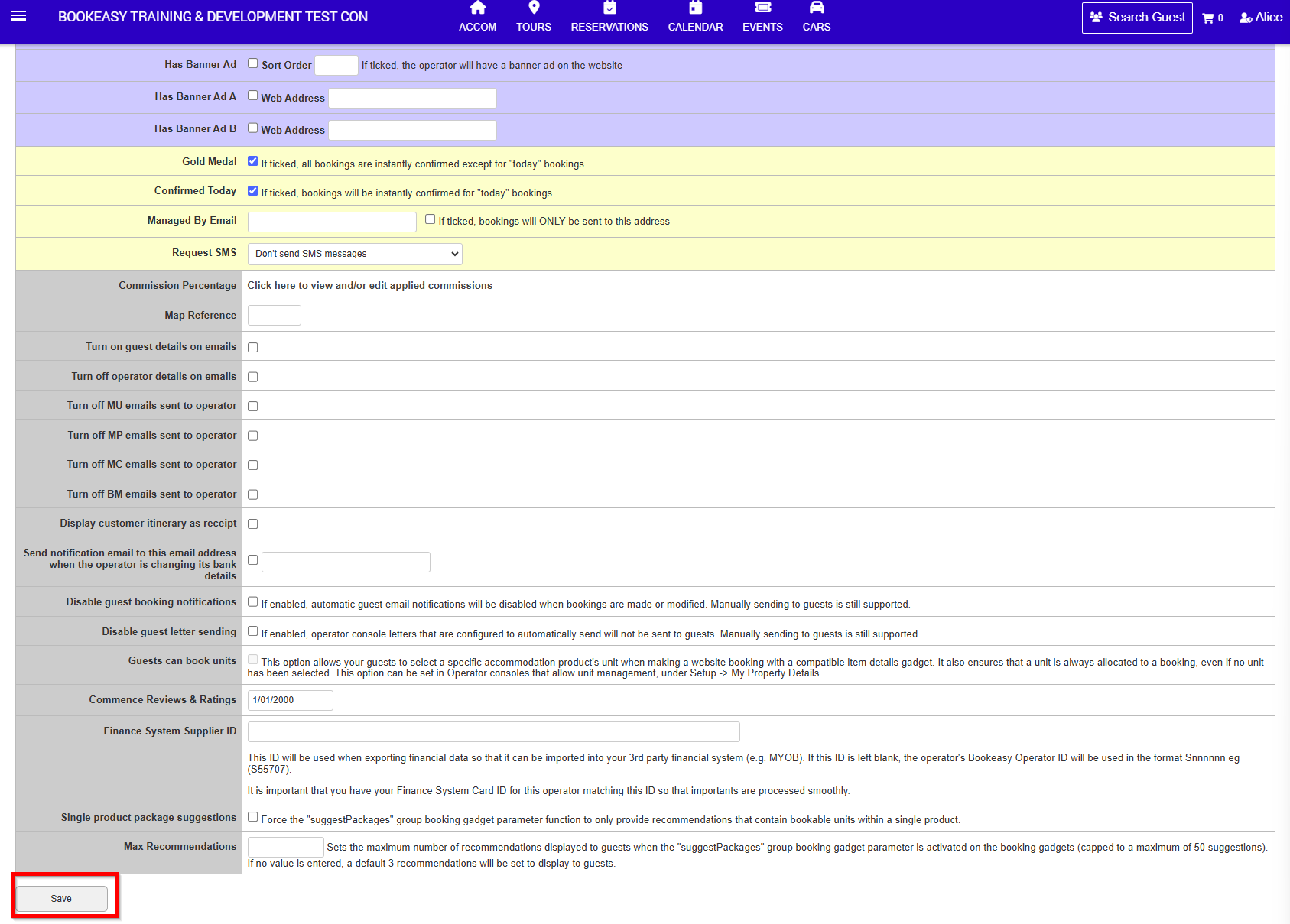
- Click Save
Operator Login
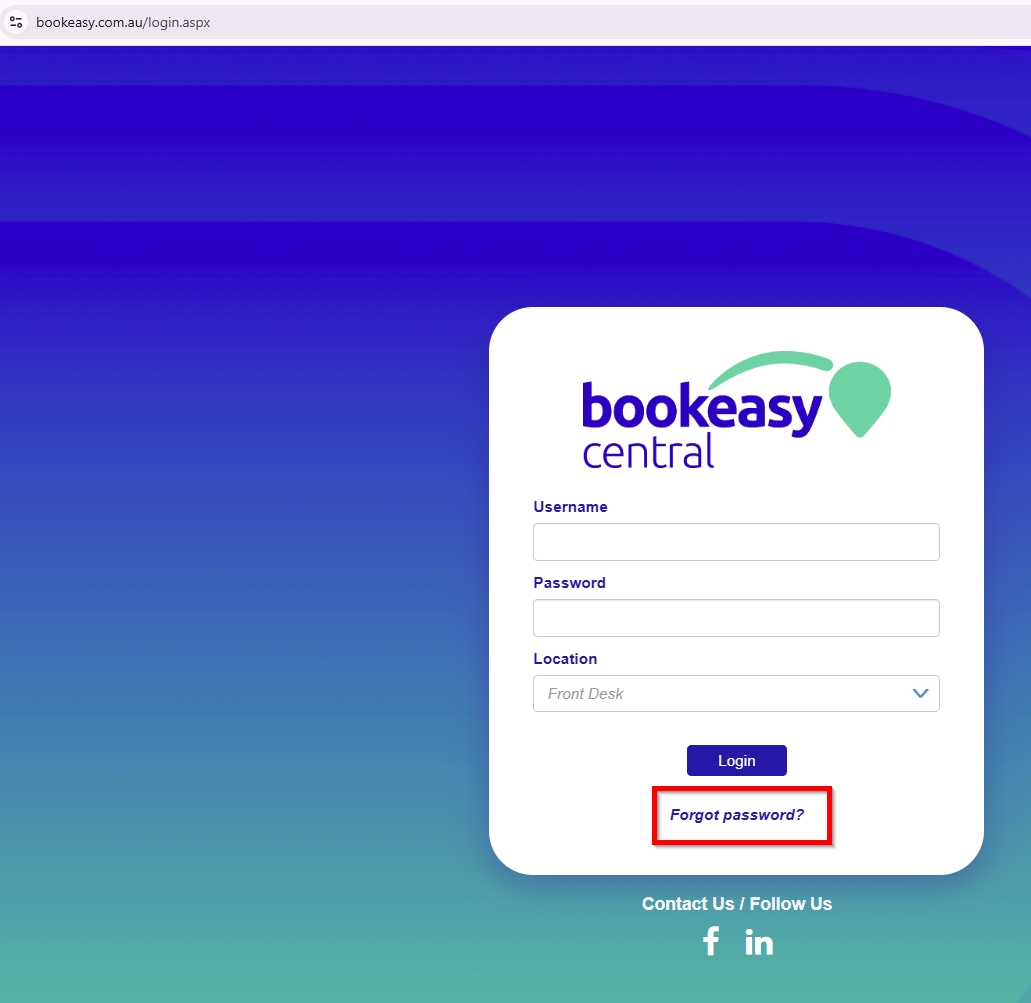
- The Operator is able to login via the standard Bookeasy login page.
- Provide the Operator with their username. The Operator then clicks on Forgot Password? to proceed with logging in the first time.
- The Operator is now able to complete the setup of their Bookeasy listing, including connecting to their Channel Manager or Tour Booking System.