This guide explains how to make a quote through your Visitor Centre console, including searching for accommodation, tours and car hire
Before making a booking, it's important to understand the two types of operators available in the system:
- Instant Confirmation Operators: These operators provide live availability and pricing, allowing you to confirm accommodation bookings immediately without contacting the operator.
- On Request Operators: These operators require you to contact them directly to confirm availability and pricing before proceeding with a booking. Never confirm an On Request booking with a customer until the operator has approved it.
When assisting a customer, always confirm their travel dates, number of guests and travel requirements before searching. This will help you identify suitable options and provide accurate pricing.
Important: Always quote the total price for the stay and ensure the customer understands the applicable cancellation and modification policies before completing their booking.
Important: Quotes are limited to one product per quote. If you add multiple products to a shopping cart, each product will be split into separate quotes.
Searching for Accommodation
1. From the dashboard menu, select Accommodation (home icon).
2. Enter your accommodation search criteria using the available fields:
- Quick Search- Operator Name: Search for a specific accommodation provider.
- Check-in Date: Select the customer's arrival date.
- Number of Nights: Enter the length of the stay.
- Adults, Children and Infants: Enter the number of guests travelling.
- Location: Search for accommodation within a particular destination.
3. Click Search to display accommodation matching your criteria.
4. Review the search results to identify suitable accommodation for your customer. Each result will display the accommodation operator, available room types and pricing. You can select:
- View: To access additional property information, including images, facilities and accommodation details.
- Book: To display available room types and a breakdown of pricing.
5. Check whether the accommodation operator offers Instant Confirmation or On Request bookings. If the property is On Request, contact the operator to confirm availability and the total price before proceeding.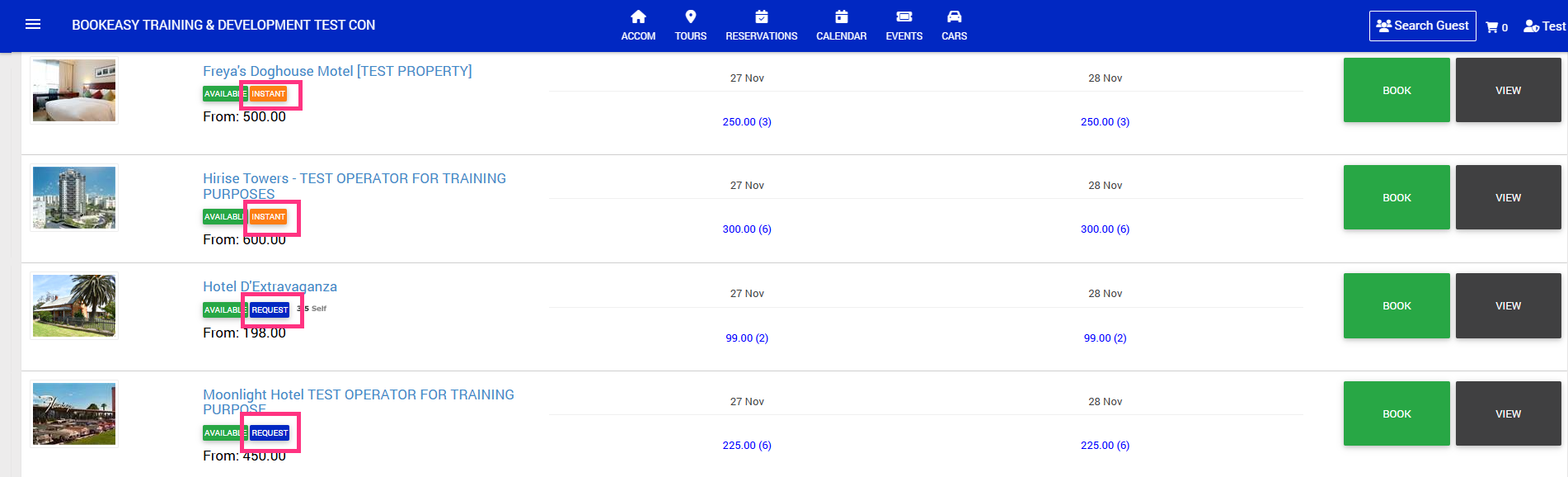
6. Once the customer has selected their preferred accommodation, locate the appropriate room type and click the Available button displaying the price.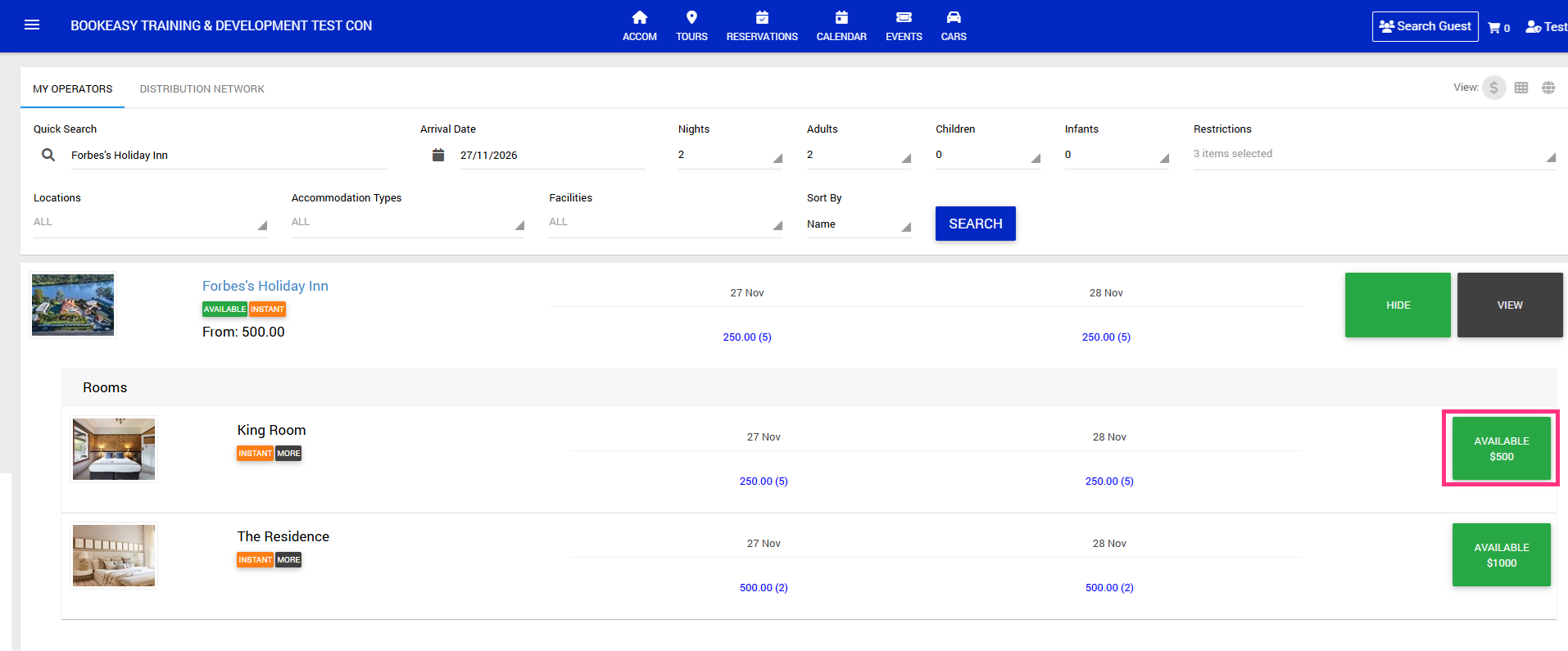
Adding Accommodation to the Cart
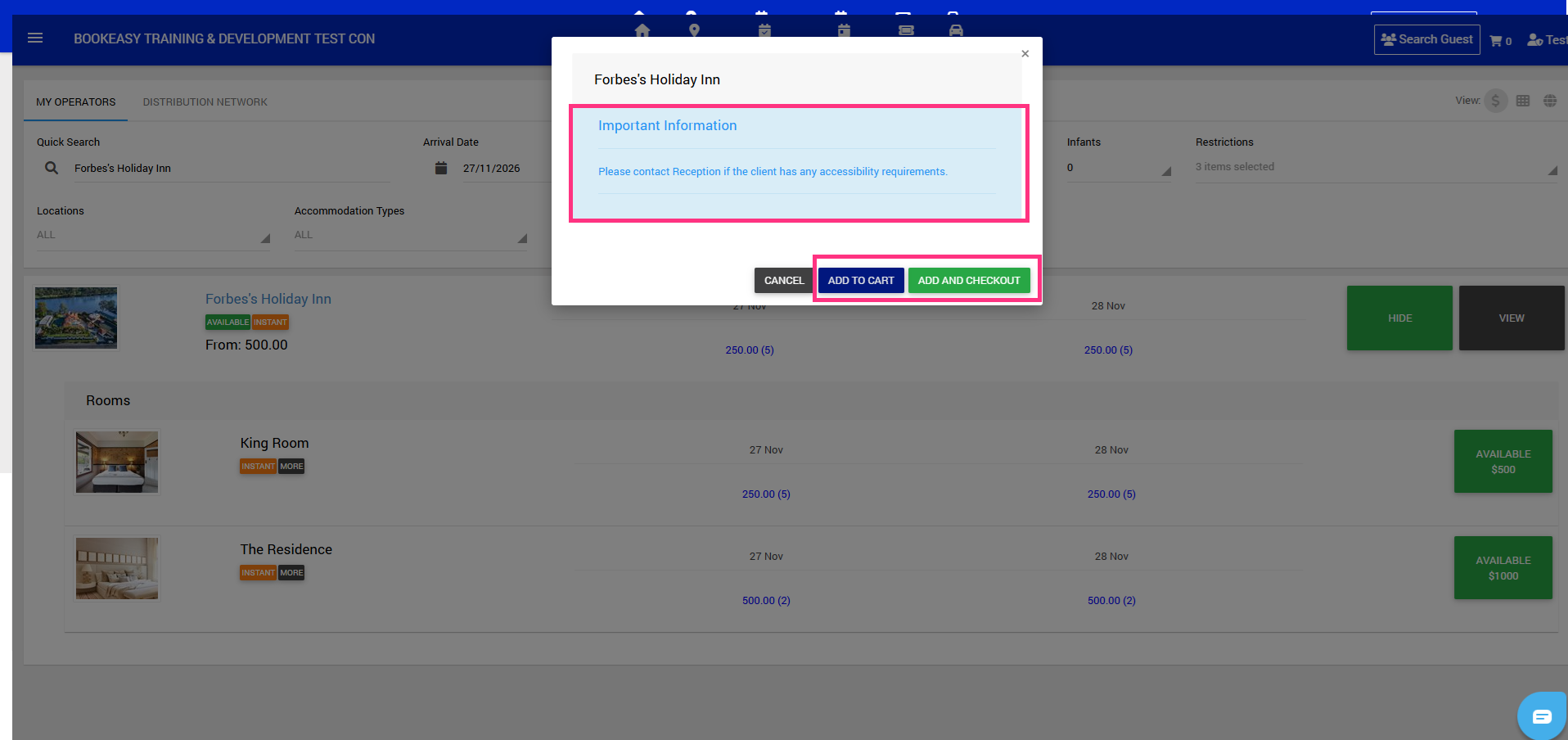
After selecting the accommodation, a pop-up window may appear displaying important booking information provided by the operator. Review this information carefully, as it may include additional instructions or requirements relevant to the booking.
1. Read any important information displayed in the pop-up window.
2. Select one of the following options:
- Add to Cart: Select this option if the customer wishes to continue adding accommodation, tours or other products to their itinerary.
- Add and Checkout: Select this option if the customer has finished selecting products and is ready to proceed with their booking.
Important : When an item is added to your shopping cart, the inventory is temporarily held for the allocated cart reservation period. This helps prevent the same inventory from being booked by another customer while you complete the booking.
If your shopping cart is approaching expiry or has expired, the system will display an alert. If the cart expires, the held inventory will be released, and you will need to add the items to your cart again, subject to availability. We recommend completing your bookings promptly to avoid losing the selected inventory.
3. Review the accommodation details displayed in the Itinerary / Shopping Cart, including the check-in and check-out dates, number of nights, guests and total price
4. If an authorised price adjustment is required, update the total price and select Override Total.
5. Complete any additional booking questions provided by the accommodation operator.
6. Click, Click here to revise your changes to save any updated pricing or booking information.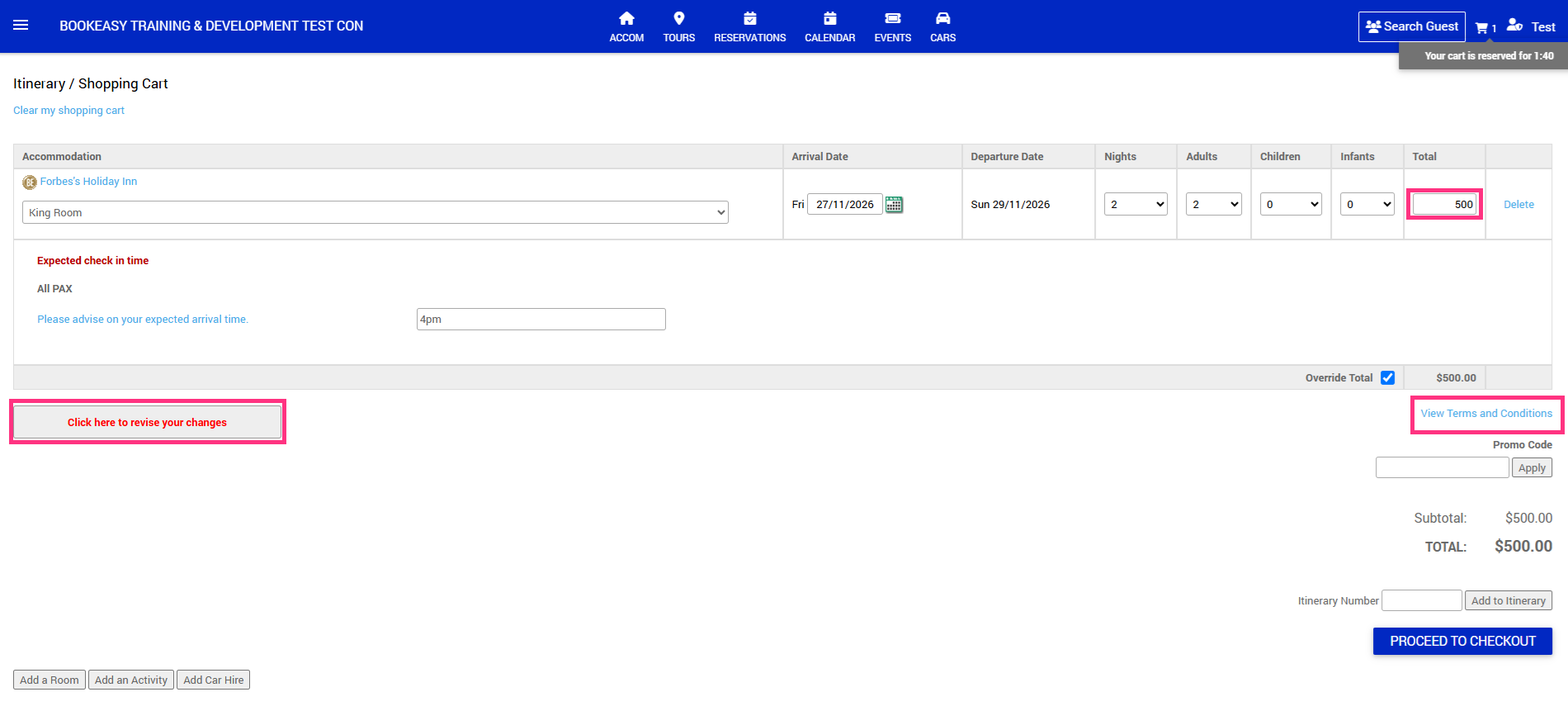
Important: Only override the booking price where the adjustment has been authorised by the operator or is otherwise permitted under your Visitor Centre's procedures.
Reviewing Terms and Conditions
Before proceeding to checkout, you must ensure the customer understands and accepts the applicable booking terms and conditions. These will include conditions set by both your Visitor Centre and the accommodation operator.
1. From the Itinerary / Shopping Cart, select View Terms & Conditions.
2. Review the relevant terms and conditions with the customer, paying particular attention to cancellation and modification policies.
3. Confirm that the customer understands and accepts these conditions.
4. Click Proceed to Checkout to continue.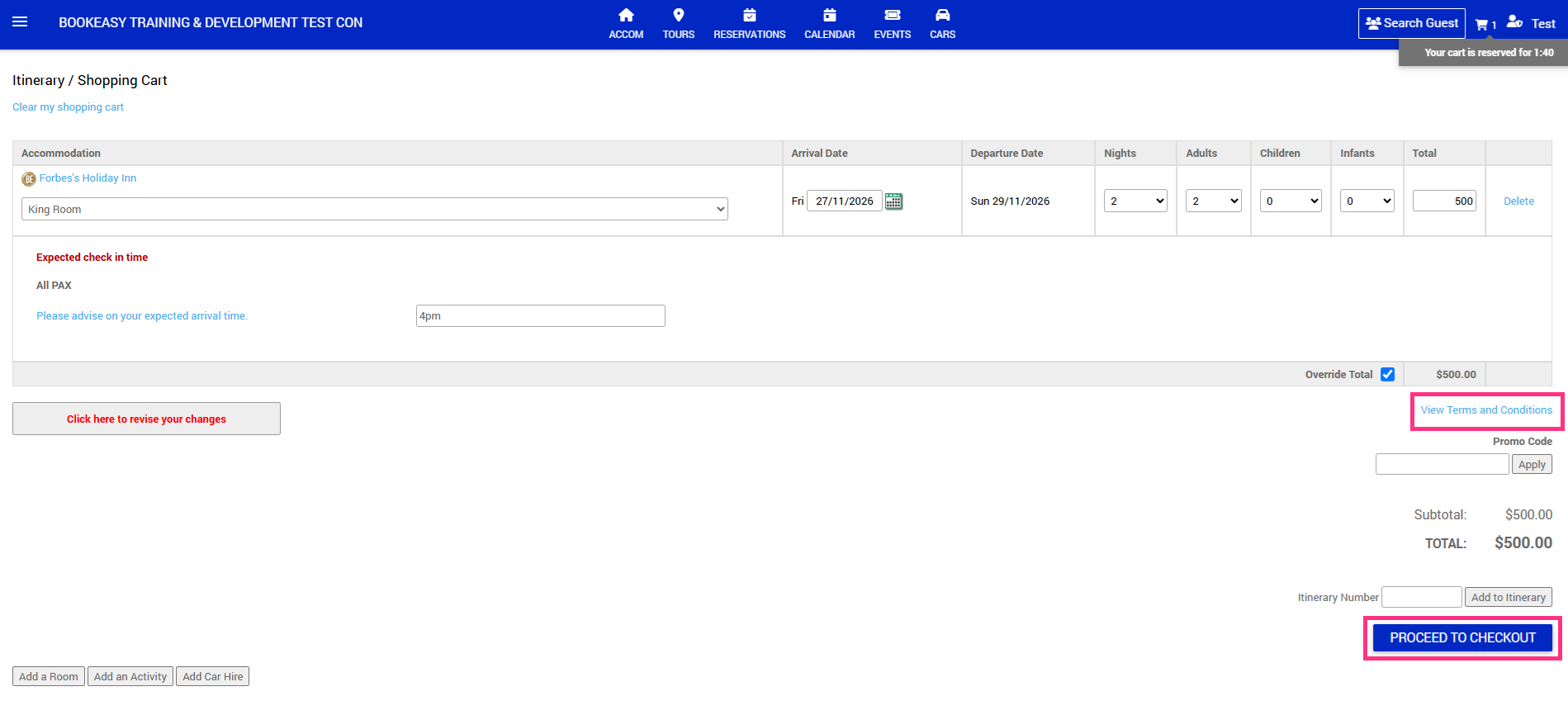
Important: Cancellation and modification policies vary between operators. Always ensure the customer is aware of the conditions before confirming their booking.
Entering Customer Details
At checkout, you will need to associate the accommodation booking with a customer record. Before creating a new customer, always check whether they have previously booked through your Visitor Centre to avoid creating duplicate records.
Existing Customers
1. Select Search for an Existing Guest.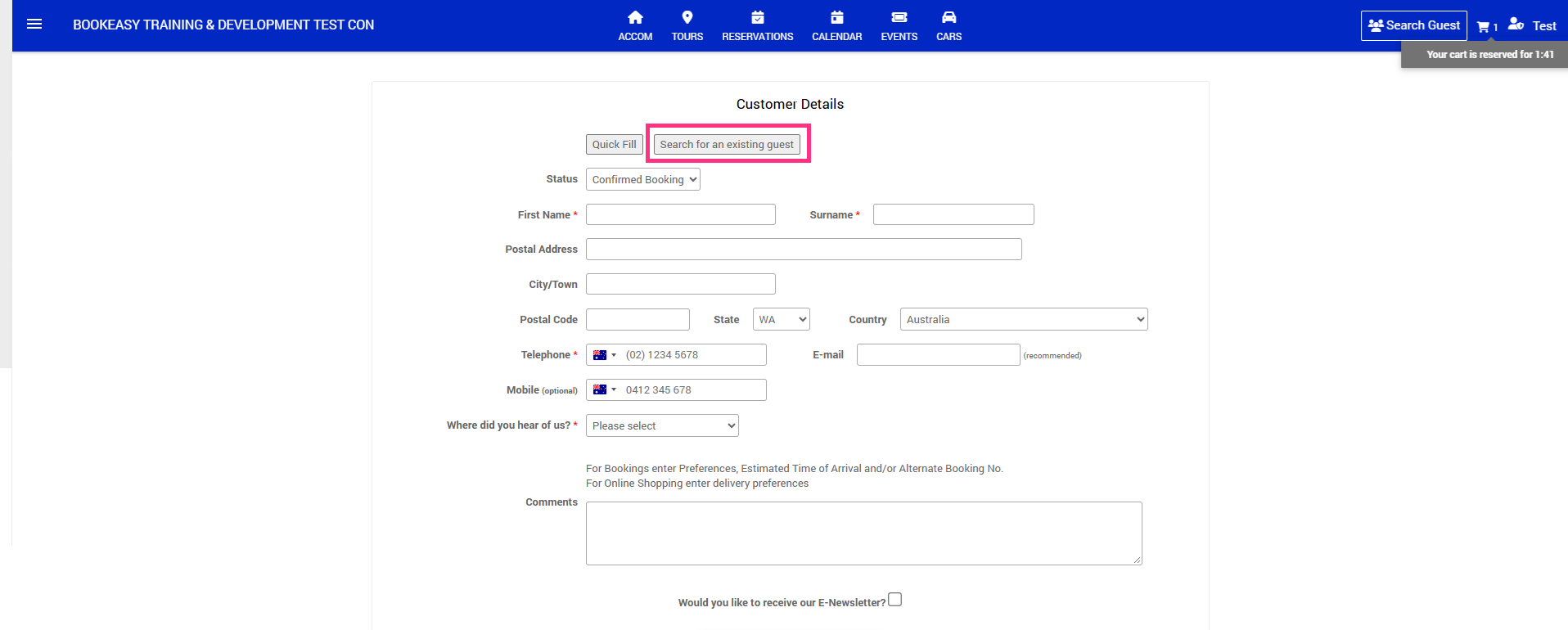
2. Enter at least three letters of the customer's name to search for their existing record.
3. Review the search results and locate the correct customer.
4. Verify the customer's identity by confirming their contact information.
5. Once the correct customer has been identified, select Make Quote from the Actions column.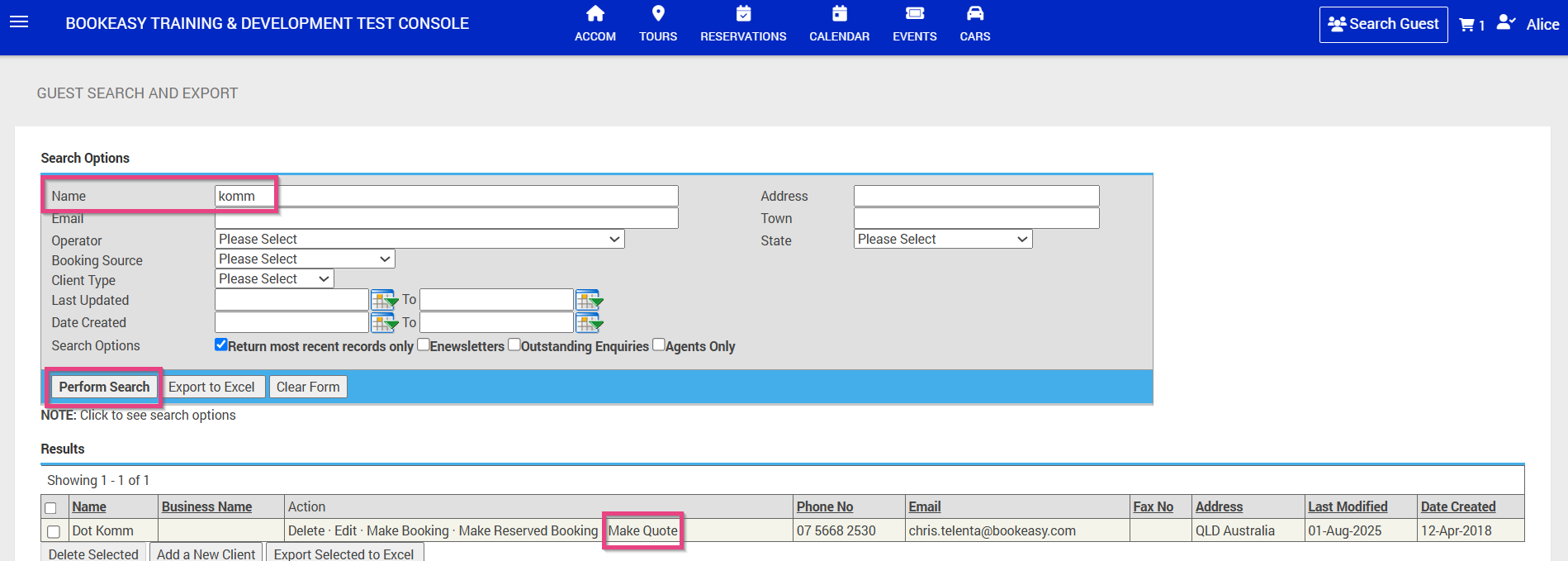
Important: Never disclose personal information from an existing customer record when verifying their identity.
New Customers
If the customer has not previously booked through your Visitor Centre, or no existing record can be found:
1. Select Add New Client, where prompted.
2. Change the Status to Quote Only
3. Enter the customer's required information, including:
- Full name
- Email address
- Contact phone number
- Address details, where required
4. Review the information with the customer to ensure all details are correct.
5. Select Make Booking or Sale to create the booking.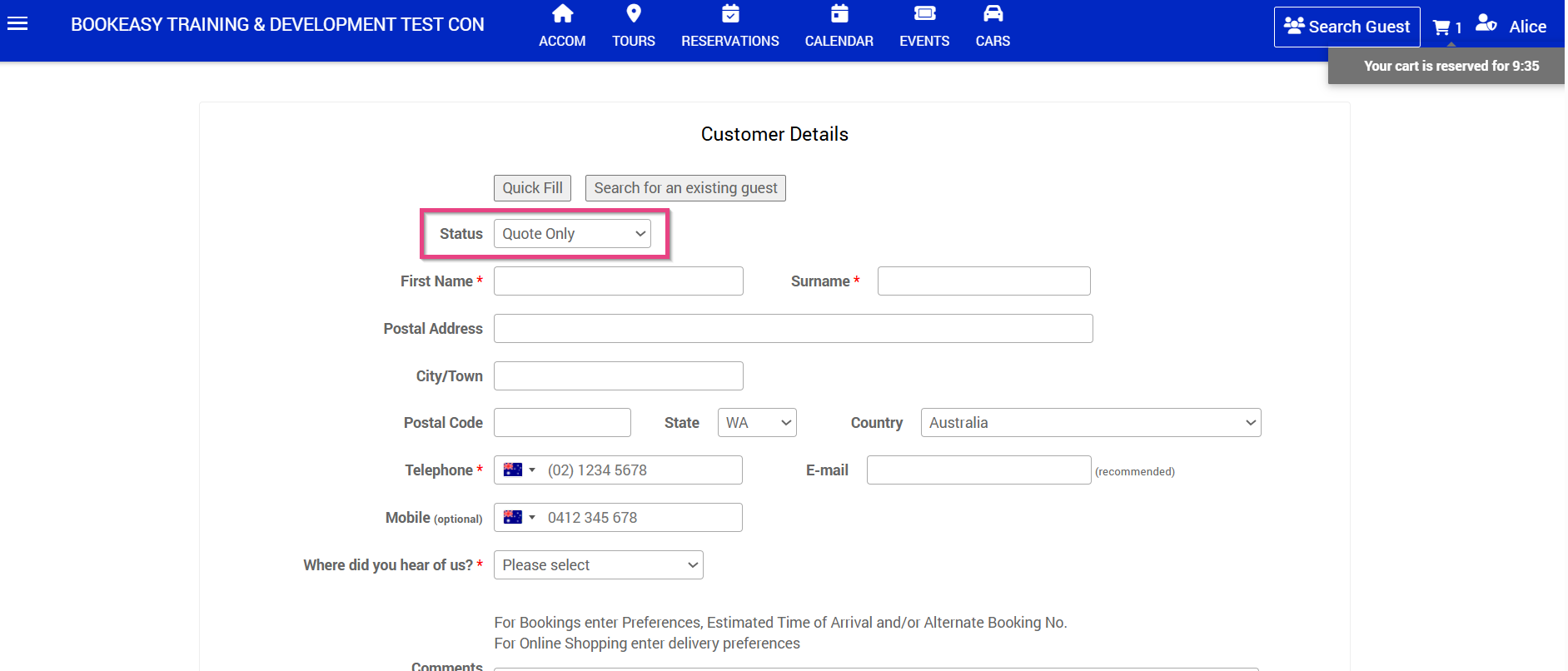
Reviewing the Quote
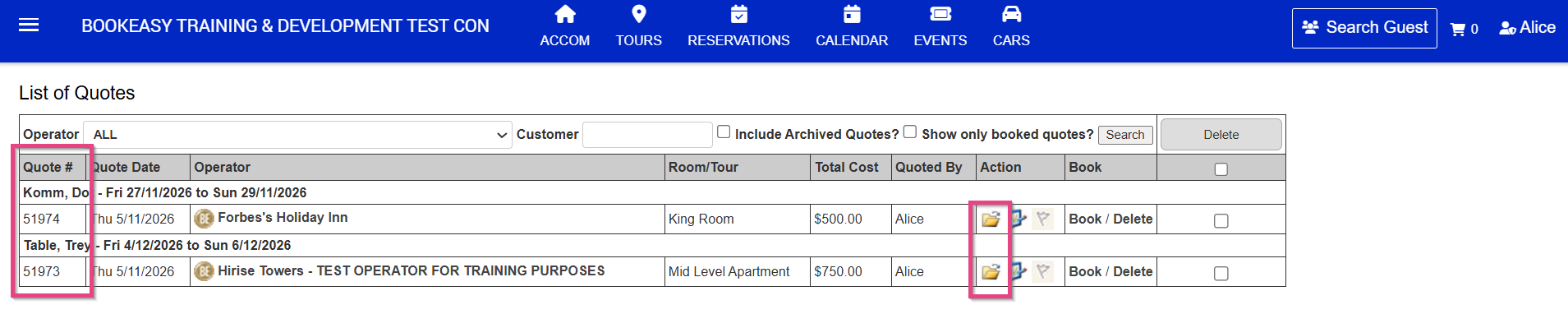
Once the quote has been created, the system will display the quote and generate a unique Quote Number. This number can be used to locate the quote in the future.
Click on the first icon under Action to view the quote.
Important: Availability is not secured for quotes
Your quote is now complete.