This guide explains how to add a new accommodation room in your Bookeasy Operator Console, including configuring room details, guest capacity, rates and other essential settings. Adding accurate room information ensures your accommodation is displayed correctly to potential guests through the Book Australia Marketplace and can be booked according to your property's availability and pricing.
Setting up your rooms correctly helps streamline booking management and ensures guests have access to accurate information when making a reservation.
Note: Only fields relevant to your listing have been included below. Fields that are not applicable or required have been omitted.
Adding a New Room
1.Navigate to the left hand menu > Click Inventory > Click Rooms & Rates
2. Click Add a new Room to create or click the applicable room name to edit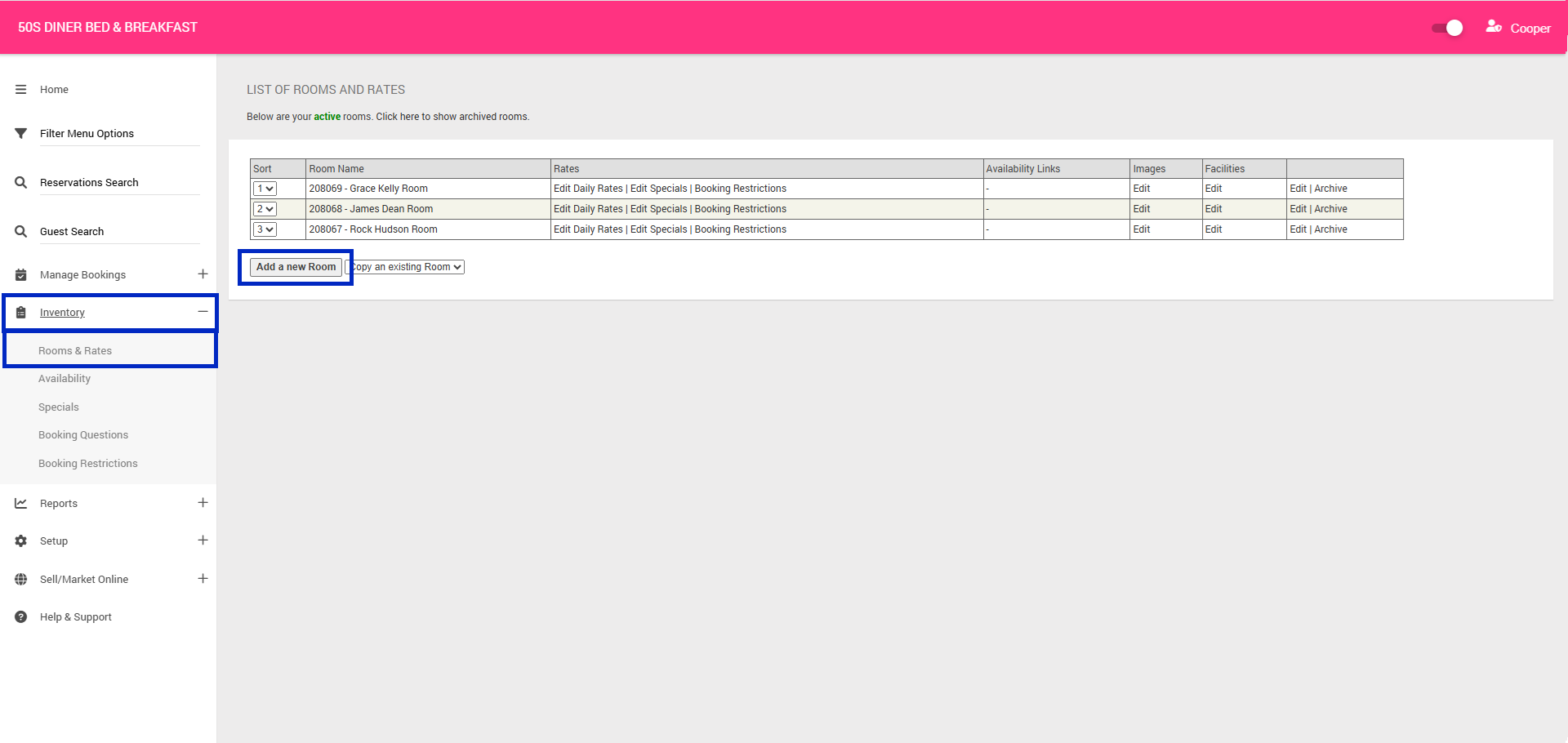
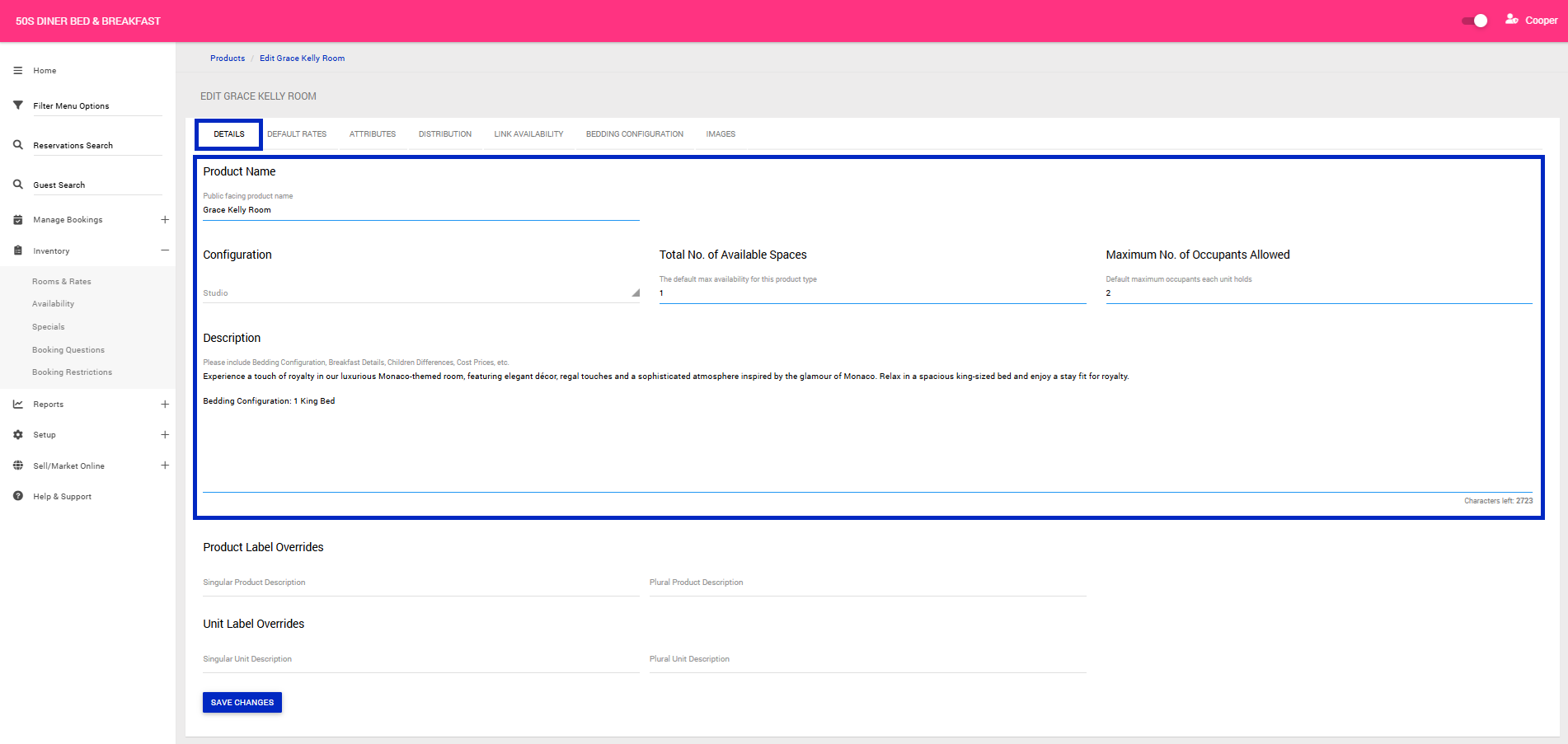
3. Under the Details tab complete the following:
- Product Name: This is the room name that will display on the Marketplace
- Configuration: Configuration: Select the most appropriate room type from the dropdown (e.g., Standard Room, Deluxe Suite, etc.)
- Total No. of Available Spaces: How many of this room type is available at your property
- Maximum No. of Occupants Allowed: Default maximum occupants each unit holds
- Description (Required for your listing to go live): The room description will be displayed on the Marketplace and should showcase your accommodation, highlighting its key features and selling points to attract potential guests. Include relevant details such as room amenities, bedding configurations and any unique features. Do not include pricing information in the room description, as rates may vary depending on availability, dates and booking conditions.
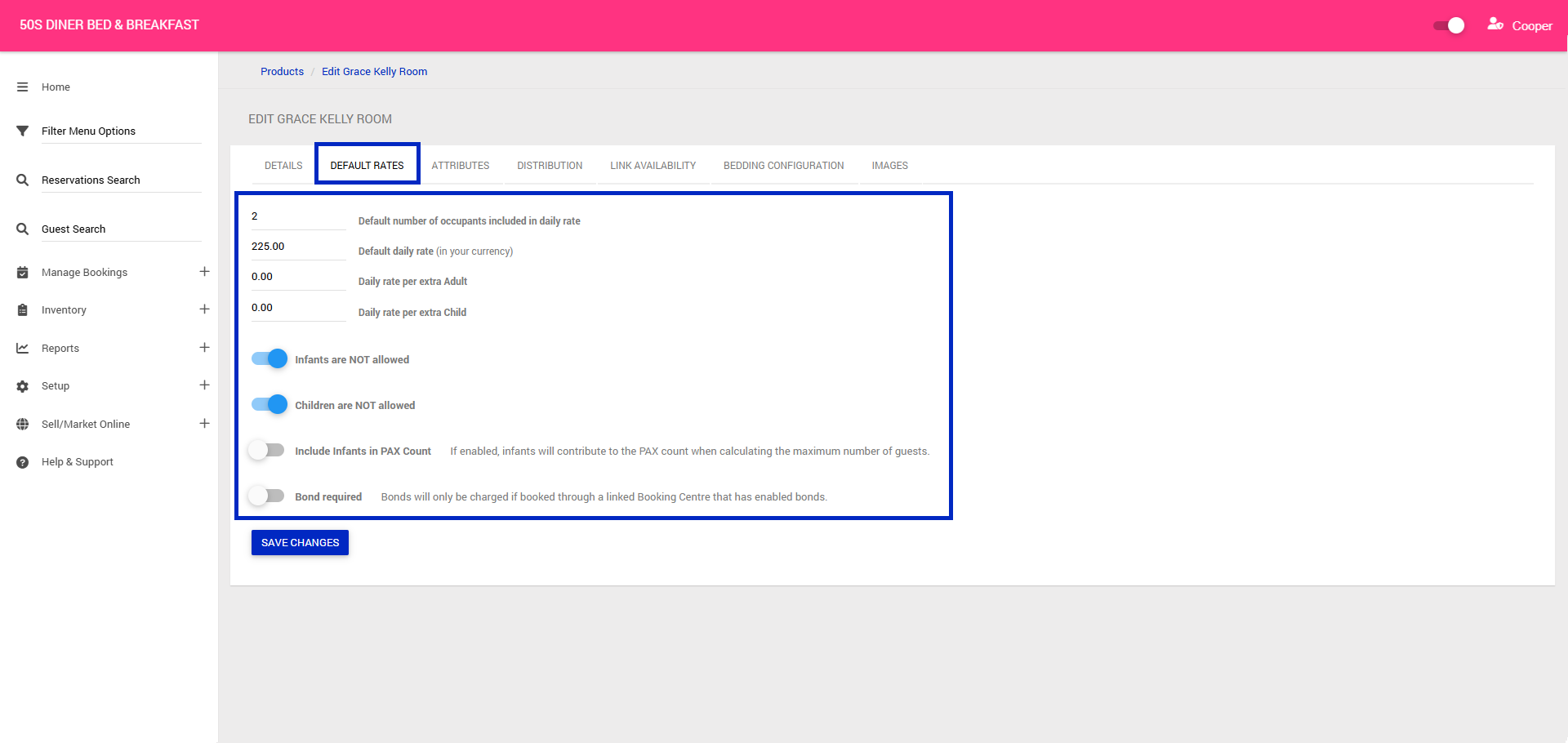
4. Click the Default Rates tab and complete the following fields. The below information is not pulled through from the Channel Manager, please ensure you complete this information:
- Default Number of Occupants Included in Daily Rate: Number of guests included in your base rate before extra occupant charges apply
- Default daily rate: Enter the default nightly rate for this room. This is a base rate only, as your room rates and pricing will be configured and managed through your connected Channel Manager.
- Daily rate per extra Adult: Enter the additional nightly charge for each extra adult staying in the room, beyond the standard occupancy. Set to $0 if no extra rate is applicable
- Daily rate per extra Child: Enter the additional nightly charge for each extra child staying in the room, beyond the standard occupancy. Set to $0 if no extra rate is applicable
- Include Infants in Pax Count: Select whether infants should be included in the total guest (pax) count for this room. Enable this option if infants should count towards the room's maximum occupancy, or leave it disabled if infants are excluded from the guest count.
5. Skip the Attributes tab
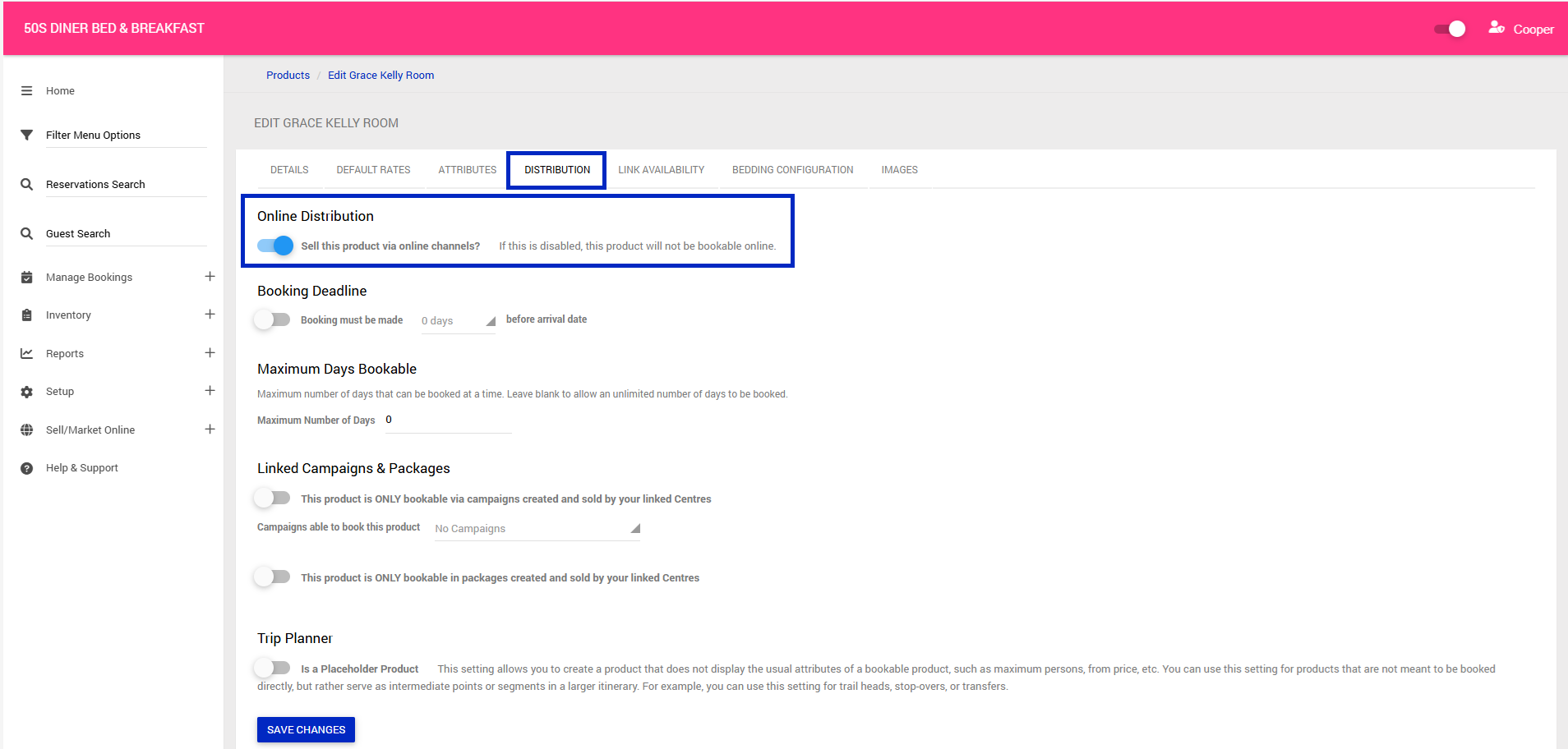
6.Click the Distribution tab and complete the following fields:
- Online Distribution: Toggle this to 'Yes' so your room can be mapped with your Channel Manager and to make your room visible and bookable on the Marketplace.
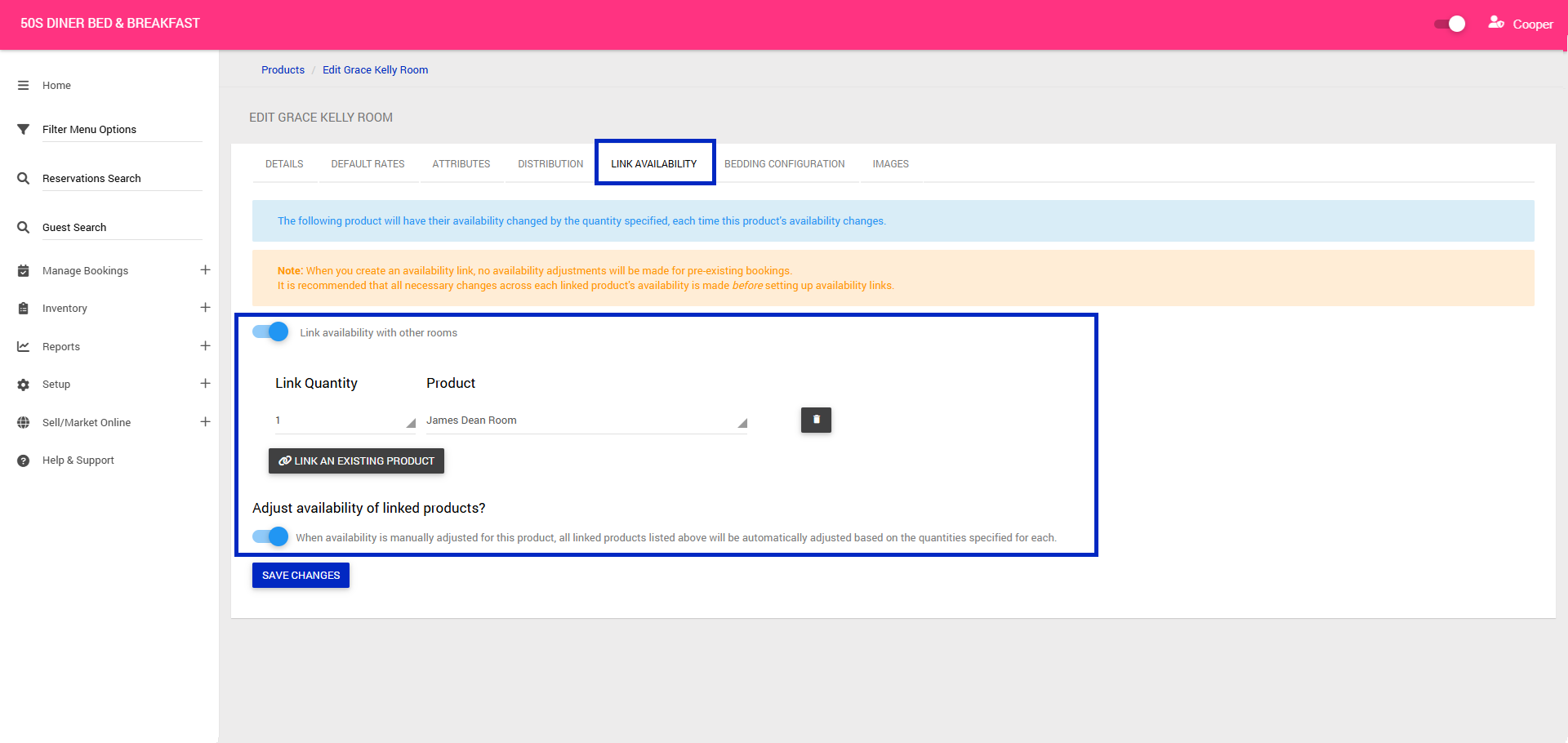
7. Click the Link Availability tab to link a rooms availability to another room. I.e- Interconnecting rooms (If applicable)
- Toggle on, Link availability with other rooms
- Add quantity and select product from the drop down
- To adjust availability automatically toggle on, When availability is manually adjusted for this product, all linked products listed above will be automatically adjusted based on the quantities specified for each.
8. If you have not yet clicked 'Save Changes' to create your room, you will need to do so before adding your Images. Once saved, click your Room Name
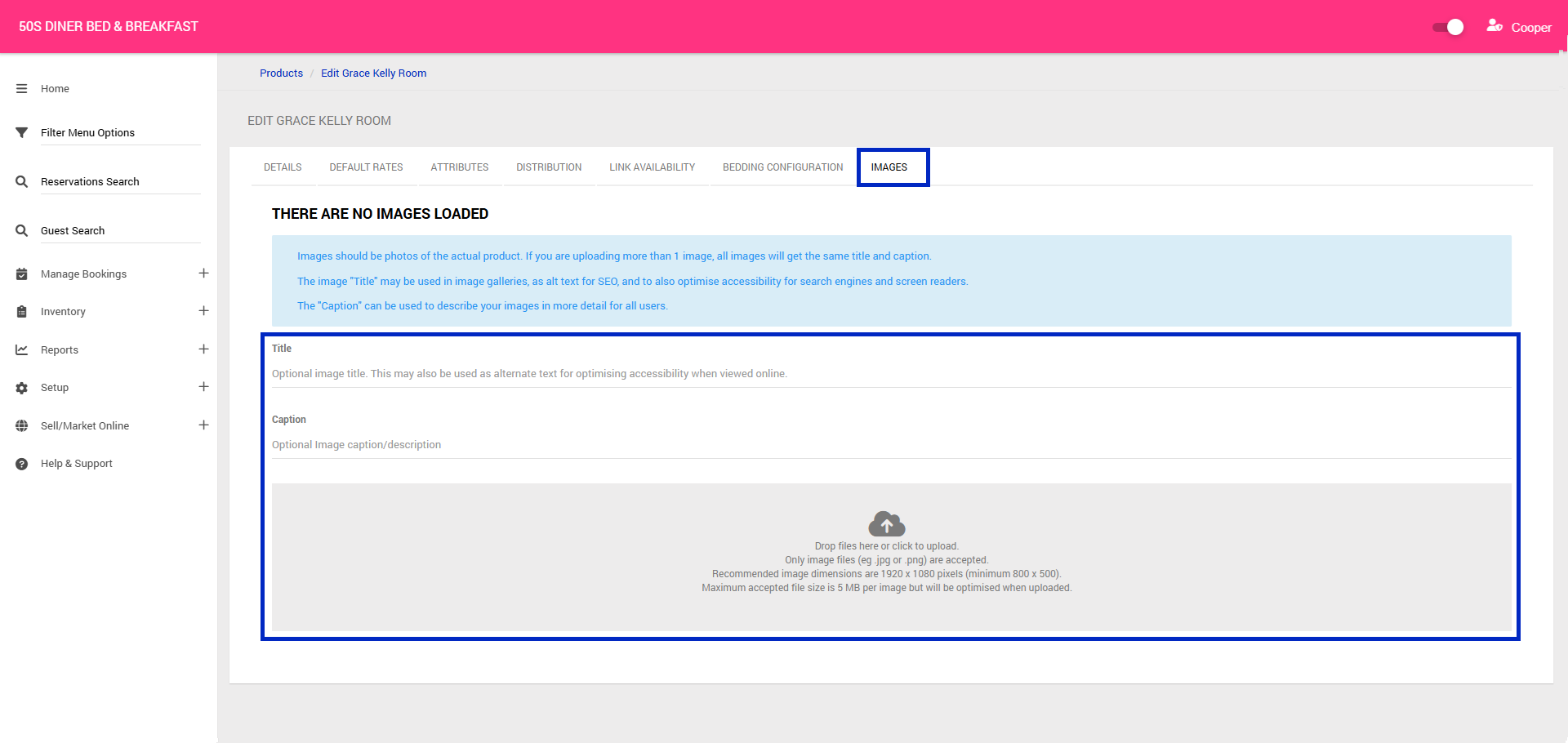
9. Click the Images tab and complete the following fields:
- Title: The image "Title" may be used in image galleries, as alt text for SEO, and to also optimise accessibility for search engines and screen readers.
- Caption: The "Caption" can be used to describe your images in more detail for all users.
10. Click the 'Drop files here' or click to upload images. Images are recommended to be 1920 x 1080 and landscape. A minimum of 3-5 images per room is advised.
11. Once images are loaded, click the pencil icon to edit the individual caption for the image.