This guide explains how to set up and edit your business details in Bookeasy, including your property name, contact information, address, bank details and time zone. Accurate business information is essential, as some of these details will automatically display on your Book Australia Marketplace listing, ensuring guests have access to correct and up-to-date information when making reservations.
Keeping your business details current helps maintain consistency across your booking platforms, ensures payments can be processed correctly and supports accurate application of booking policies.
Important – Bank Details: Ensure your bank account details are entered and kept up to date. These details are required to receive operator return payments for bookings made through Book Australia's Marketplace. Missing or incorrect bank details may result in payment delays.
Important – Time Zone: Ensure the correct time zone is selected for your property's location. Bookeasy uses this setting to calculate cancellation and modification policy timeframes. An incorrect time zone may result in these policies being applied at the wrong time.
Updating Business Details
1. Navigate to the left-hand menu (3 lines in the top left hand corner)
2. Click Setup > Business Details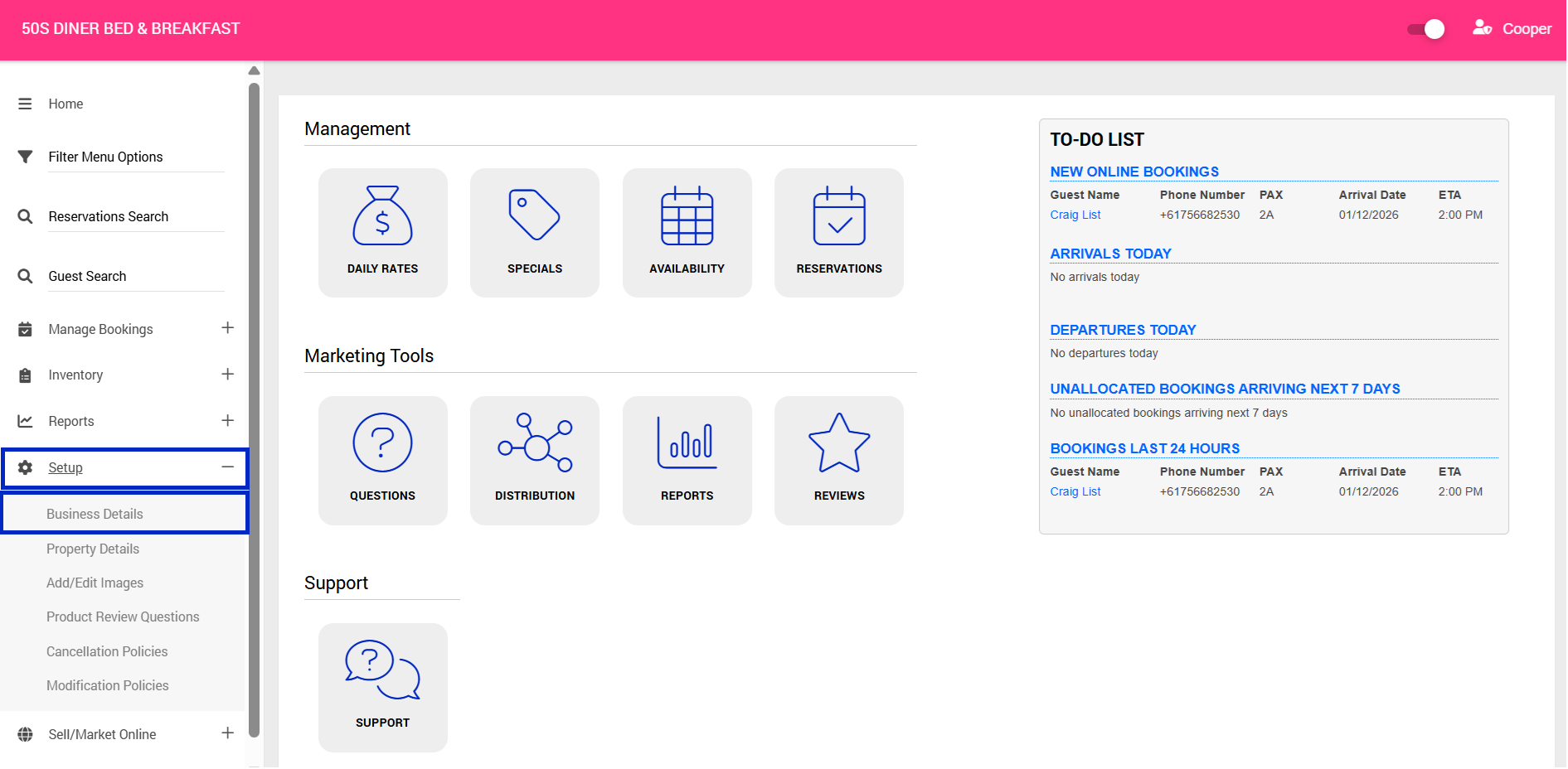
3. Complete the following fields to ensure your operator listing is accurate, up to date and optimised for the Book Australia Marketplace:
- First Name: Enter the primary contact's first name.
- Surname: Enter the primary contact's surname.
- Business Name: Enter your business's trading name.
- Business Number Label: Enter the type of business registration number (e.g. ABN).
- Business Number: Enter your registered business number (e.g. ABN).
- Email: Enter your primary business email address.
If you require an email notification for Accounts Payable for remittance please contact your Onboarding Consultant.
- Email Notifications: Enable this option if you would like to receive email notifications when a booking has been paid in full.
- Website: Enter your business website URL.
- Phone: Enter your primary business contact number.
- Postal Address: Enter your business's postal address, including town, postcode and country.
- Time Zone: Select your business's local time zone. This is important as it is used to calculate cancellation and modification timeframes for bookings made through the Book Australia Marketplace, including our Self-Service Portal and internal booking management processes.
- Local Taxes: Select the applicable tax settings (e.g. GST).
- Business Location: Enter your business's physical location. This is used to display your location on Google Maps, helping customers understand where your business is situated when viewing your listing on the Book Australia Marketplace.
- Accommodation Type: Select the most appropriate option from the dropdown menu.
- Location: Select the most relevant location from the dropdown menu.
- Point of Difference: Highlight what makes your business unique and why customers should choose you over other options.
- Directions from Nearest Town: Provide clear directions to help customers find your business.
- Business Description: This is your opportunity to showcase your business to potential customers. Provide a detailed, engaging description that highlights what you offer, your unique features, facilities, experiences and what makes your business worth visiting. Focus on what customers can expect and why they should book with you. This is required to go live for your listing.
- Bank Name: Enter your bank's name.
- BSB Number: Enter your six-digit BSB.
- Account Number: Enter your bank account number.
- Account Title: Enter the name associated with your bank account.
- General Terms & Conditions: Enter your business's booking terms and conditions, including cancellation and modification information. This information will be displayed to customers for review and acceptance when making a booking.
Important: This field is for static text only. Adding cancellation and modification terms here does not configure the policies used by Bookeasy for the Self-Service Portal or booking management.
Please contact your Onboarding Consultant to configure your cancellation and modification policies separately to ensure they are correctly applied within the system.
- Star Rating: Select your business's applicable star rating from the dropdown menu, where relevant.
4. Click Save
Important: Please contact your Onboarding Consultant to configure your cancellation and modification policies. For your reference, further information on how these policies are configured and managed within Bookeasy is provided below.