This guide provides an overview of the Bookeasy Operator Console, including the dashboard shortcuts, left-hand navigation menu and how to return to your Group Console. Understanding these navigation options will help you efficiently access the tools and settings needed to manage your linked operators.
Note: This guide focuses on the key features and functionality relevant to managing operator listings within the Group Console. Not all menu options and dashboard shortcuts will be covered.
Operator Console Dashboard
Once you have selected an operator from your Group Console and logged in, you will be directed to their individual Operator Console dashboard.
The dashboard provides quick access to commonly used features, divided into three sections: Management, Marketing Tools and Support.
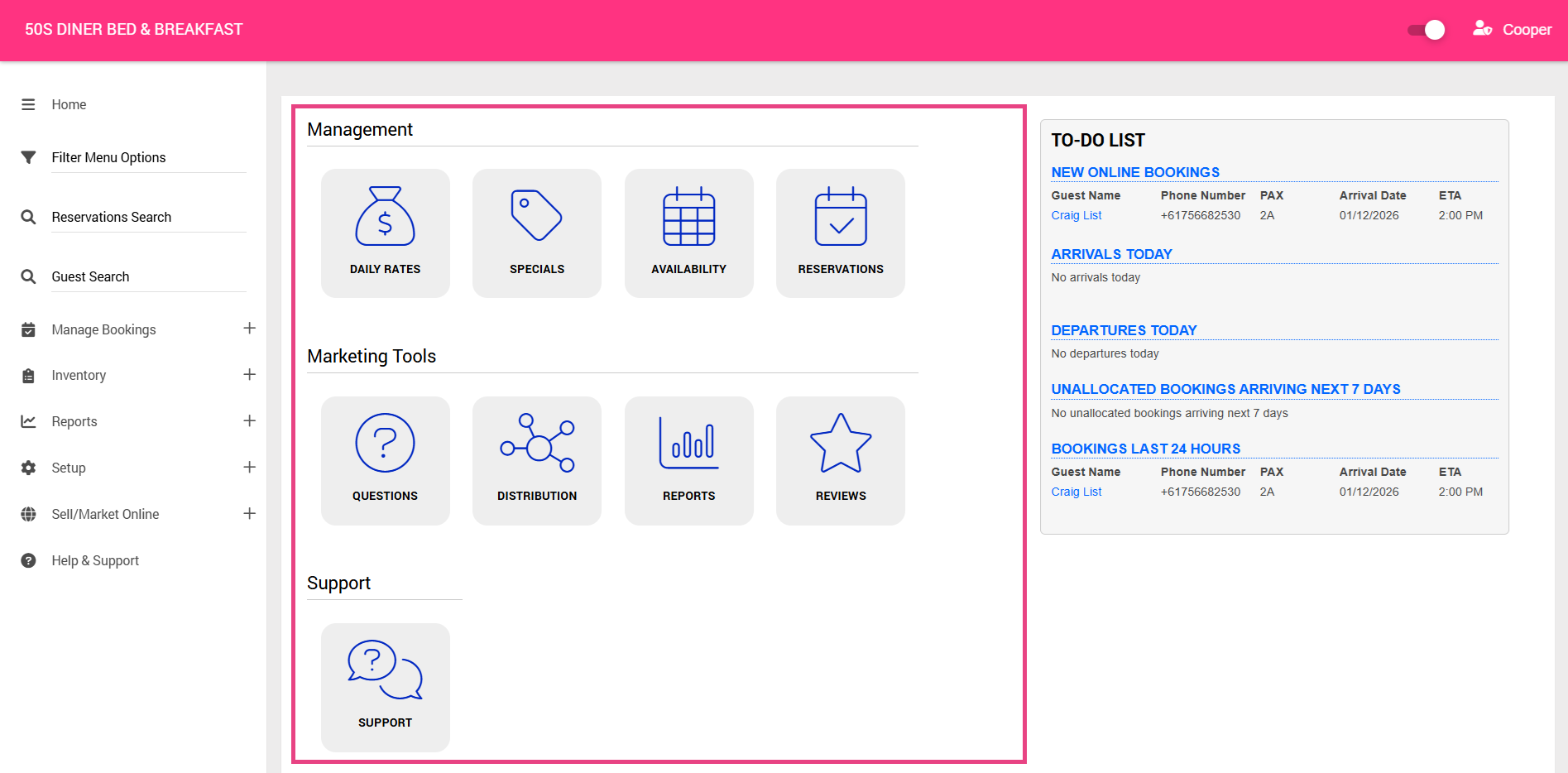
Management
- Daily Rates: View a list of room types and rates. Edit room information, daily rates, room images and other room settings.
- Specials: Create and manage accommodation specials. To create specials, please reach out to your Onboarding Consultant to discuss your options.
- Availability: Not required- Availability is managed directly through your connected Channel Manager.
- Reservations: Access Reservation Search to locate and review existing bookings. Reservations will only be visible when logging in directly to the individual Operator Console, not when accessing it via the Group Console.
Marketing Tools
- Questions: Manage booking questions that guests complete during the online checkout process.
- Distribution: Access Online Booking Control to manage online booking settings.
- Reports: Access Reservation Search to locate and review existing bookings. Reservations will only be visible when logging in directly to the individual Operator Console, not when accessing it via the Group Console.
Support
- Support: Access Bookeasy's online help guides and support resources.
Left-Hand Navigation Menu
While the dashboard provides quick links to commonly used features, the left-hand navigation menu provides the full list of tools and settings available within the Operator Console.
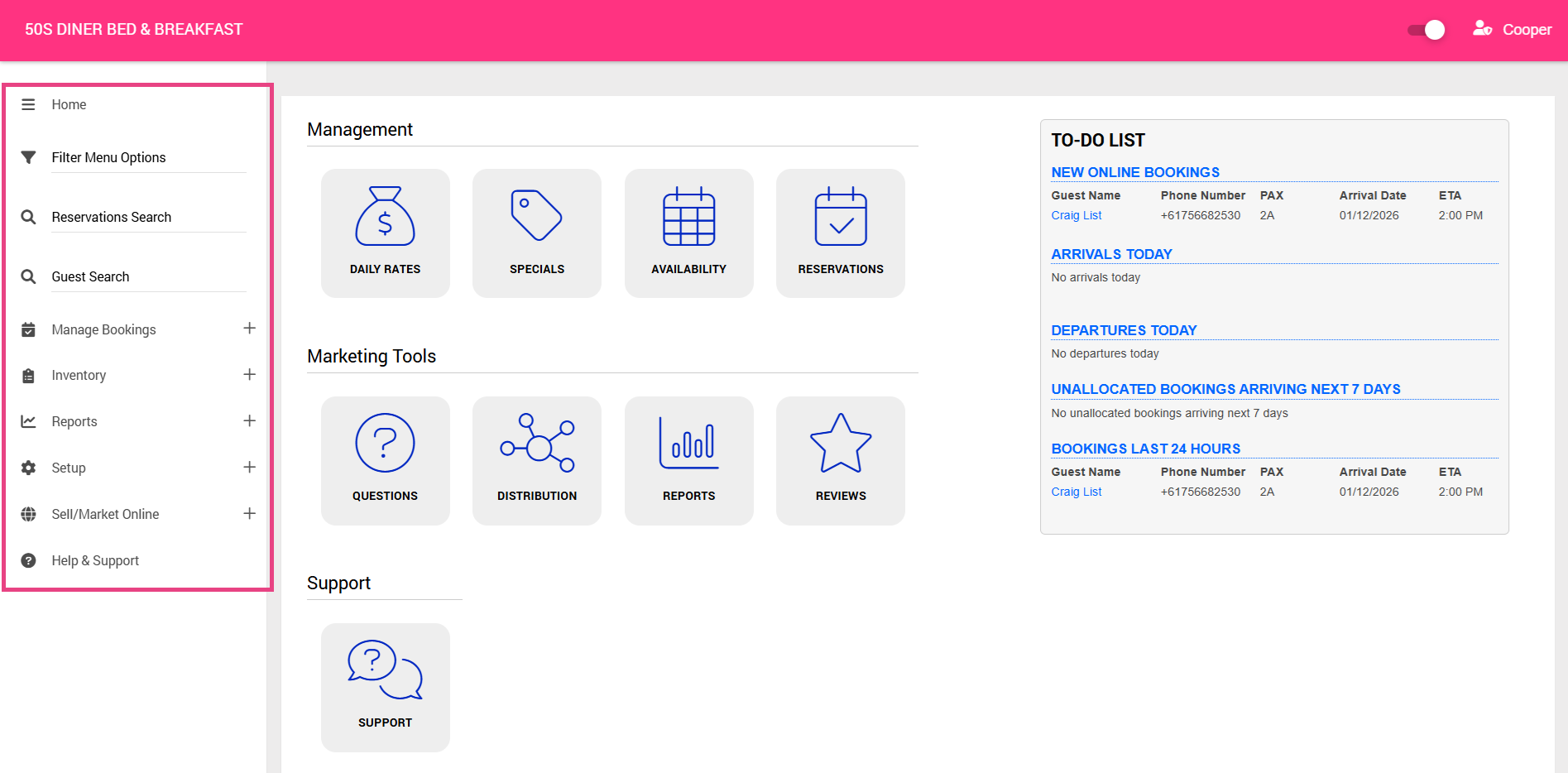
The main sections include:
- Manage Bookings: Access Reservation Search to locate and review existing bookings. Reservations will only be visible when logging in directly to the individual Operator Console, not when accessing it via the Group Console.
- Inventory: Manage rooms, rates, images, specials and booking questions.
- Reports: Access reporting
- Setup: Update business and property details, upload property images and manage cancellation and modification policies.
- Sell/Market Online: Manage direct website bookings and online booking settings.
- Help & Support: Access online help guides and support information.
Tip: To return to the Operator Console homepage at any time, simply click the operator's name in the top-left corner of the screen.
Navigating back to the Group Console
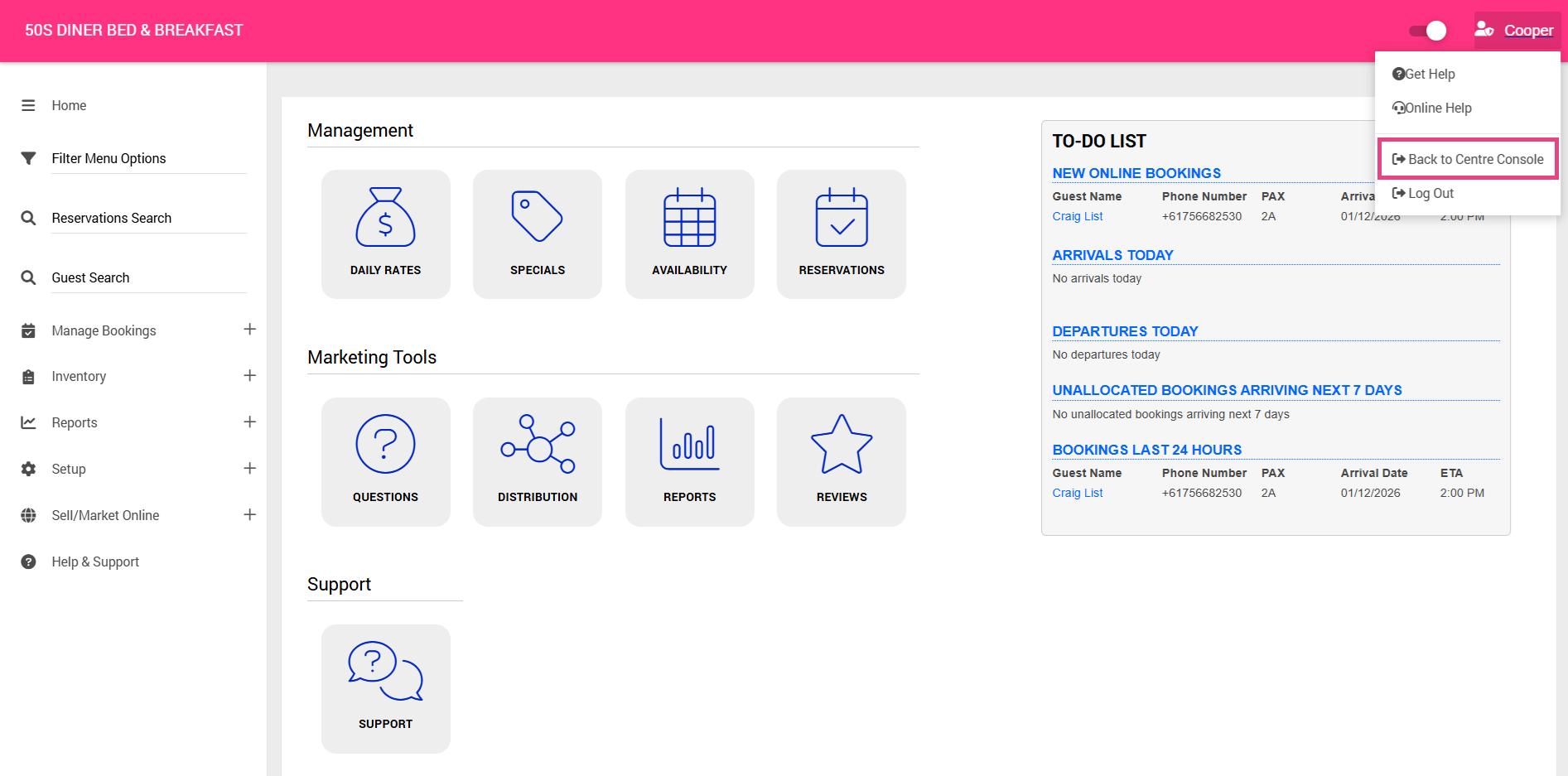
1. Click your name in the top-right corner of the Operator Console to access your account menu.
2. Click Back to Centre Console