This guide explains how to access your linked operators through your Bookeasy Group Console. The Group Console provides a central hub for managing multiple operators, allowing you to easily navigate between individual operator consoles without needing separate login credentials. From here, you can access each operator's business details and settings.
Important: To view reservations, you must log in directly to the individual operator's console. The Group Console is designed for managing and optimising operator listings only.
Accessing Your Linked Operators
Option 1: Via the Menu
1. Log in to your Bookeasy Group Console using your login credentials.
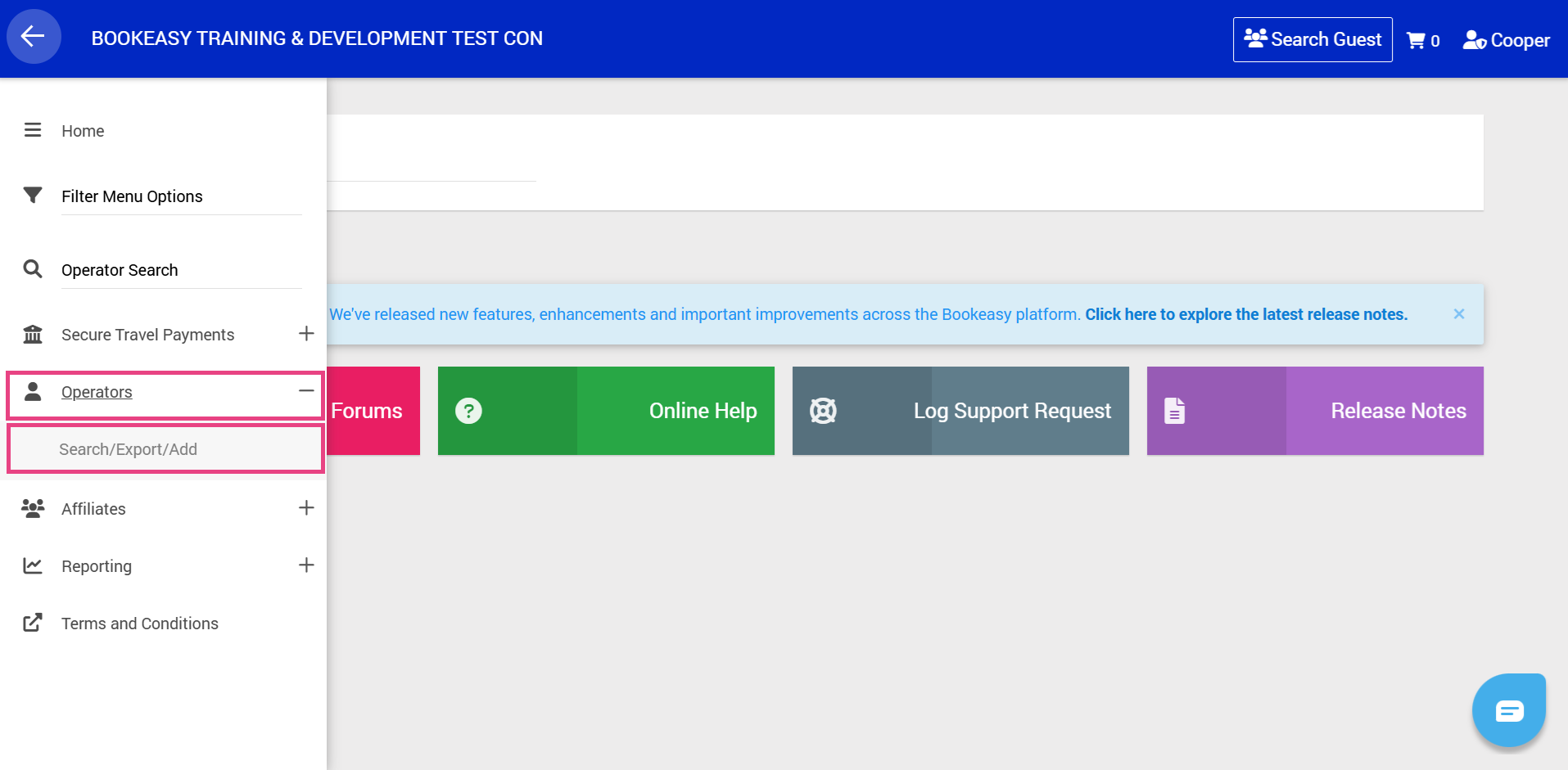
2. From the left-hand menu, navigate to Operators > Search / Export / Add.
3. Using the available search filters to locate the operator you wish to access.
Option 2: Via the Dashboard
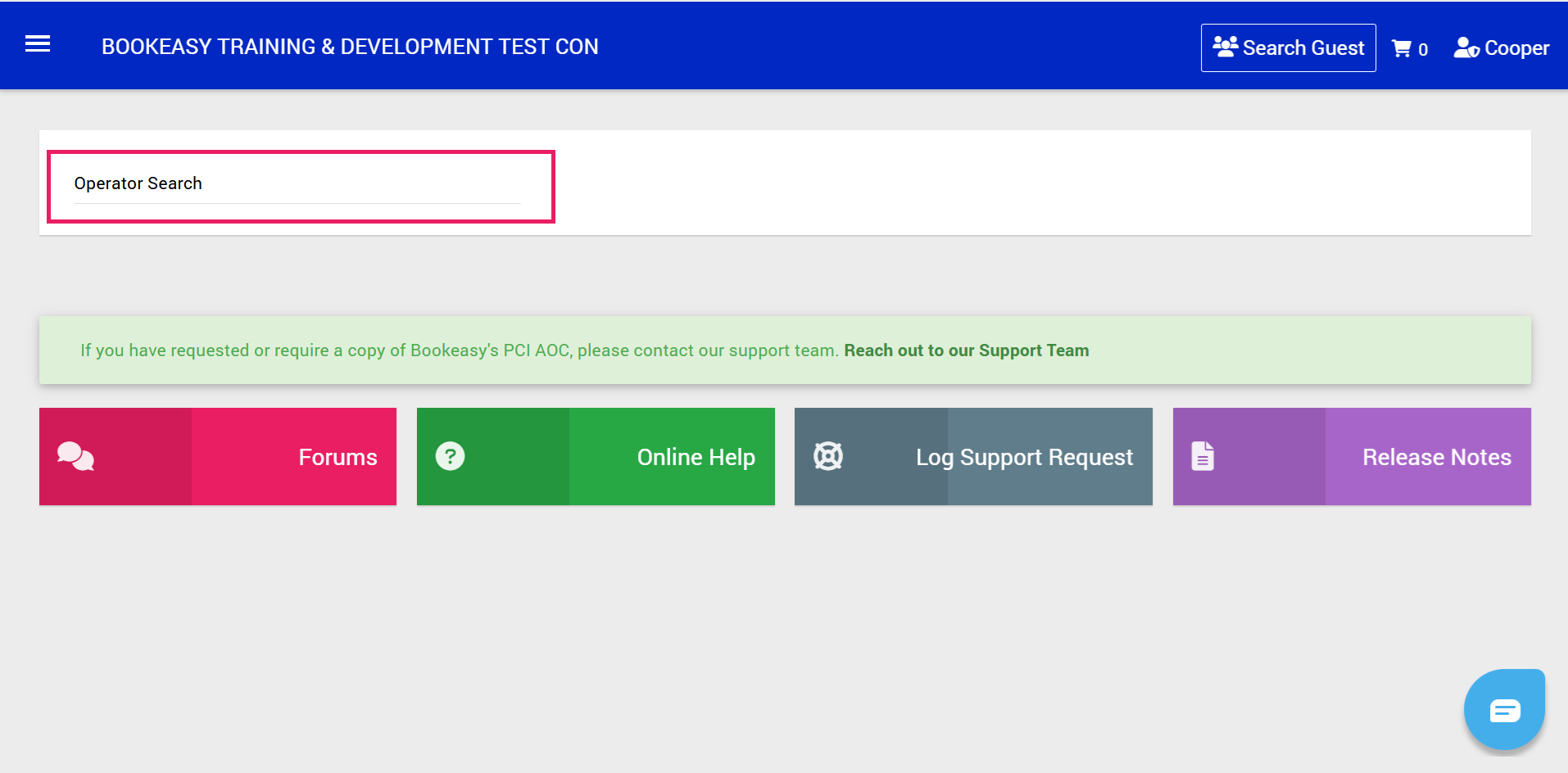
1. On the Dashboard, locate the Operator Search field.
2. Enter the operator's name (minimum of 3 characters required) and press Enter to search.
3. Alternatively, click into the Operator Search field and press Enter without entering a name.
4. Both options will take you to the Search Operators page.
Searching for an Operator
1. You can narrow down your search using one or more of the following filters:
- Name: Search by operator name (minimum of 3 characters required).
- Operator ID: Search using the operator's unique Bookeasy ID.
- Email: Search using the email address associated with the operator.
- Address / Town / State: Filter operators by their location
- Operator Type: Narrow your search by operator type.
- Operator Options: Refine your search using additional options, including Current, Non-Current, Gold Medal, 24 Hour, Mothership, Has Banner Ads, Has Hot Deals and Has External Searches.
2. Once you have entered your search criteria, click Perform Search.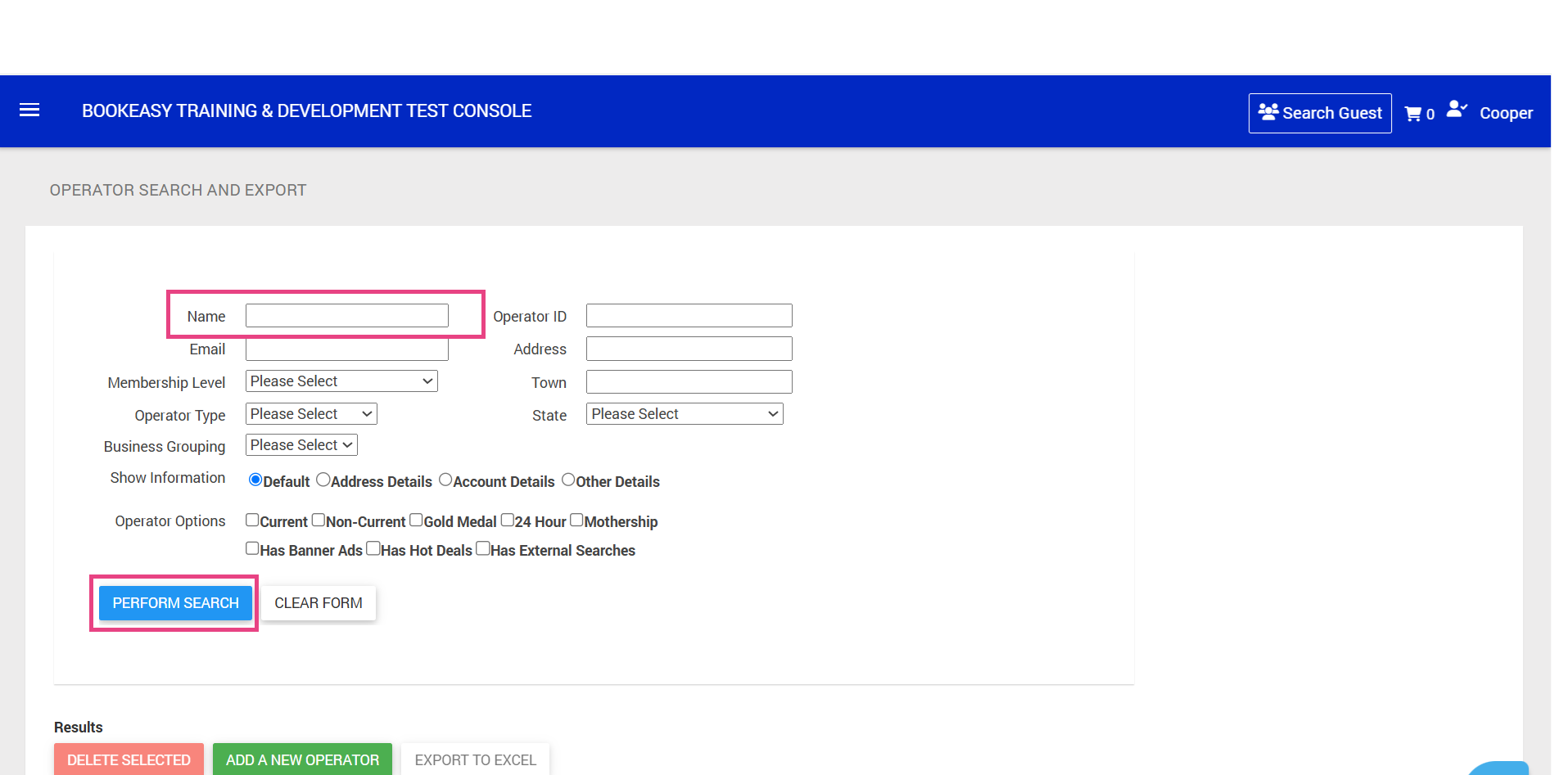
3. Review the list of operators matching your selected filters.
4. Locate the operator you wish to manage and click Login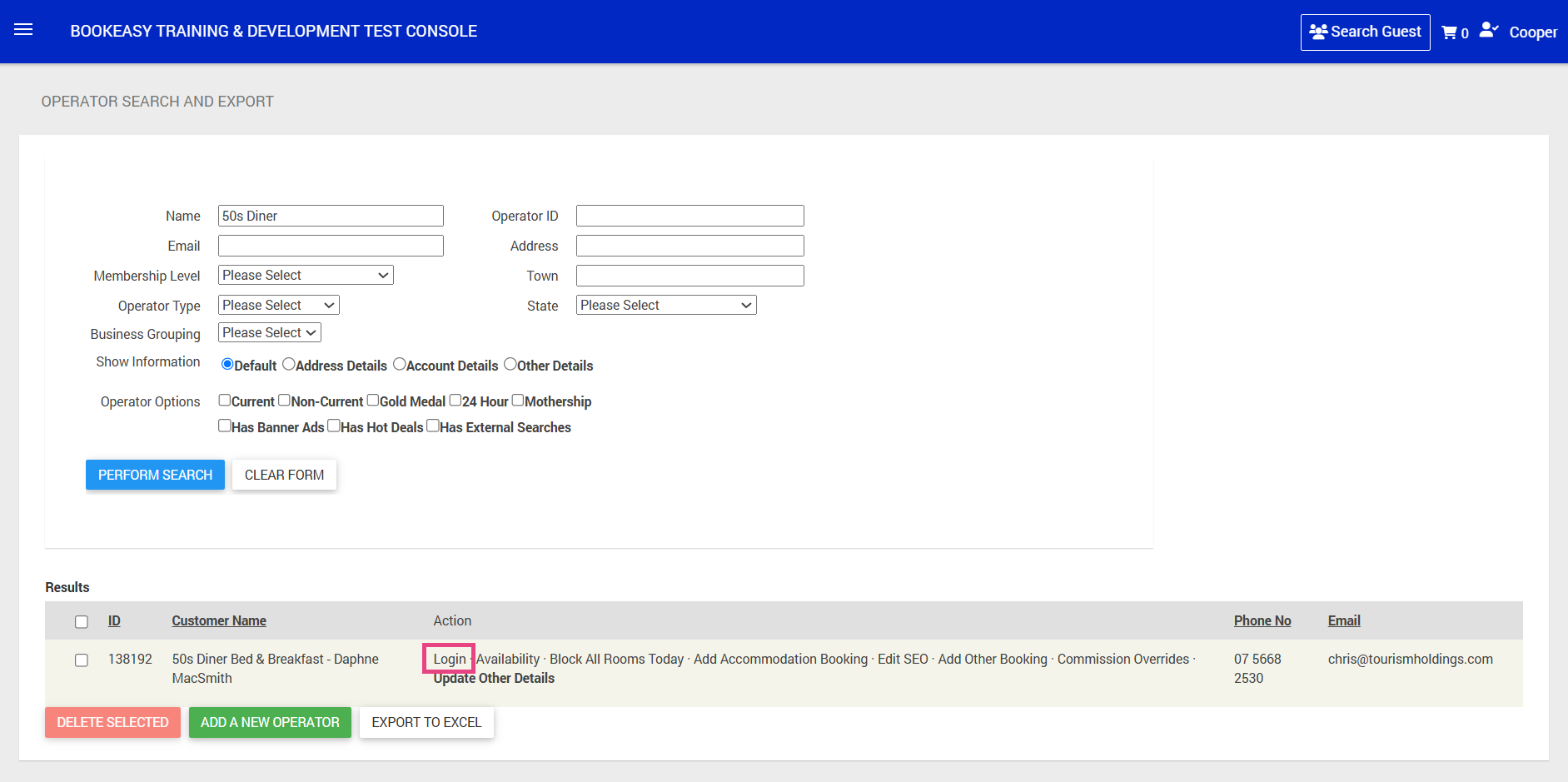
Tip: To start a new search, click Clear Form to reset your selected filters.