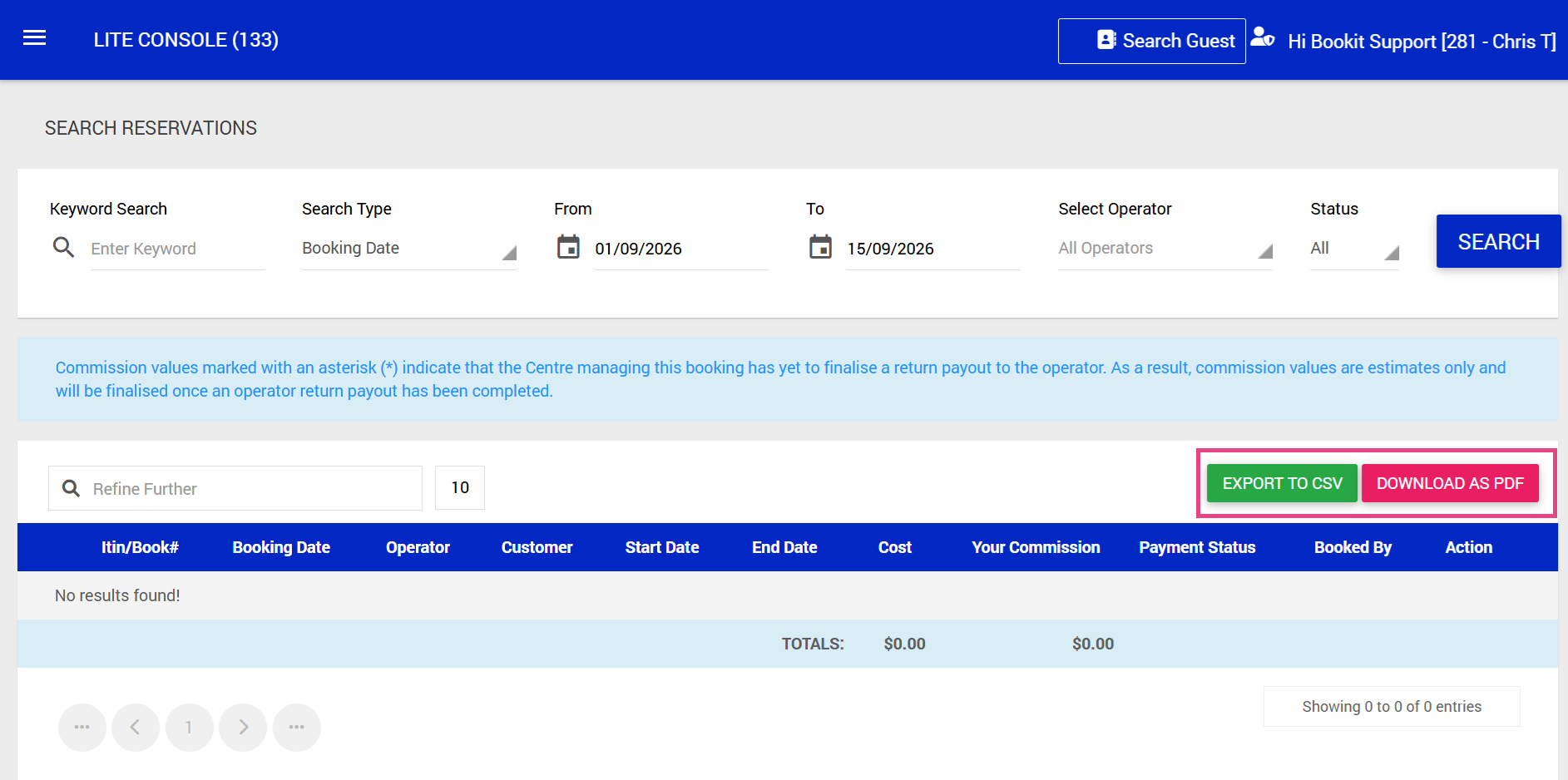
This article explains how to log into the Bookit Affiliate Console and locate booking information. The Affiliate Console allows you to search for bookings and view the details associated with a guest's reservation and commission information.
Logging into the Affiliate Console
1. Navigate to the Bookit Affiliate Console login page. This is a separate login to your Bookit Lite console
Login Link: https://operators.bookit.co.nz/login.aspx
2. Enter your username and password. If you are unsure of your login details, please reach out to support@bookit.co.nz for assistance.
3. Select Login.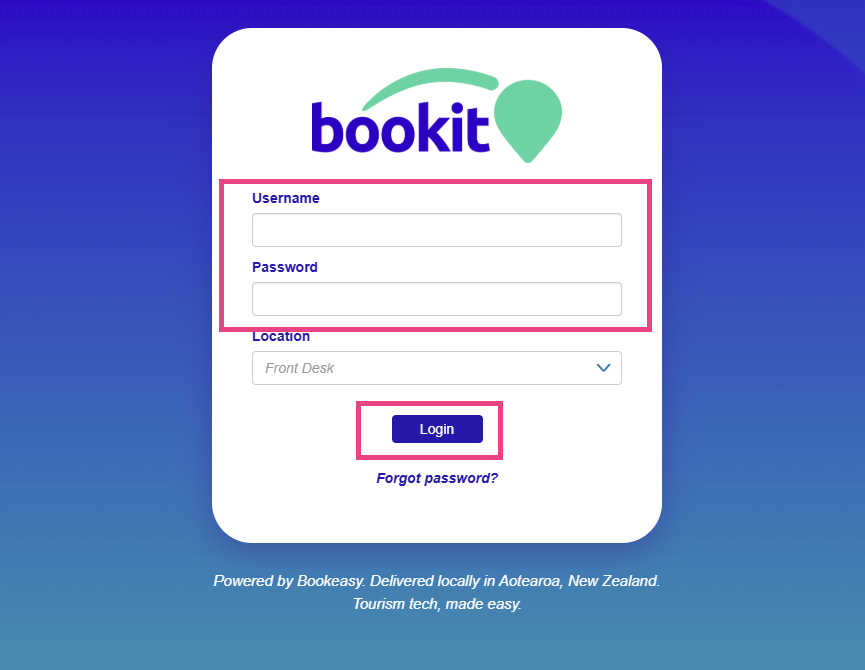
Accessing Booking Information
Once logged into the Affiliate Console:
1. Select the three-line menu in the top left-hand corner.
2. Select Search Reservations.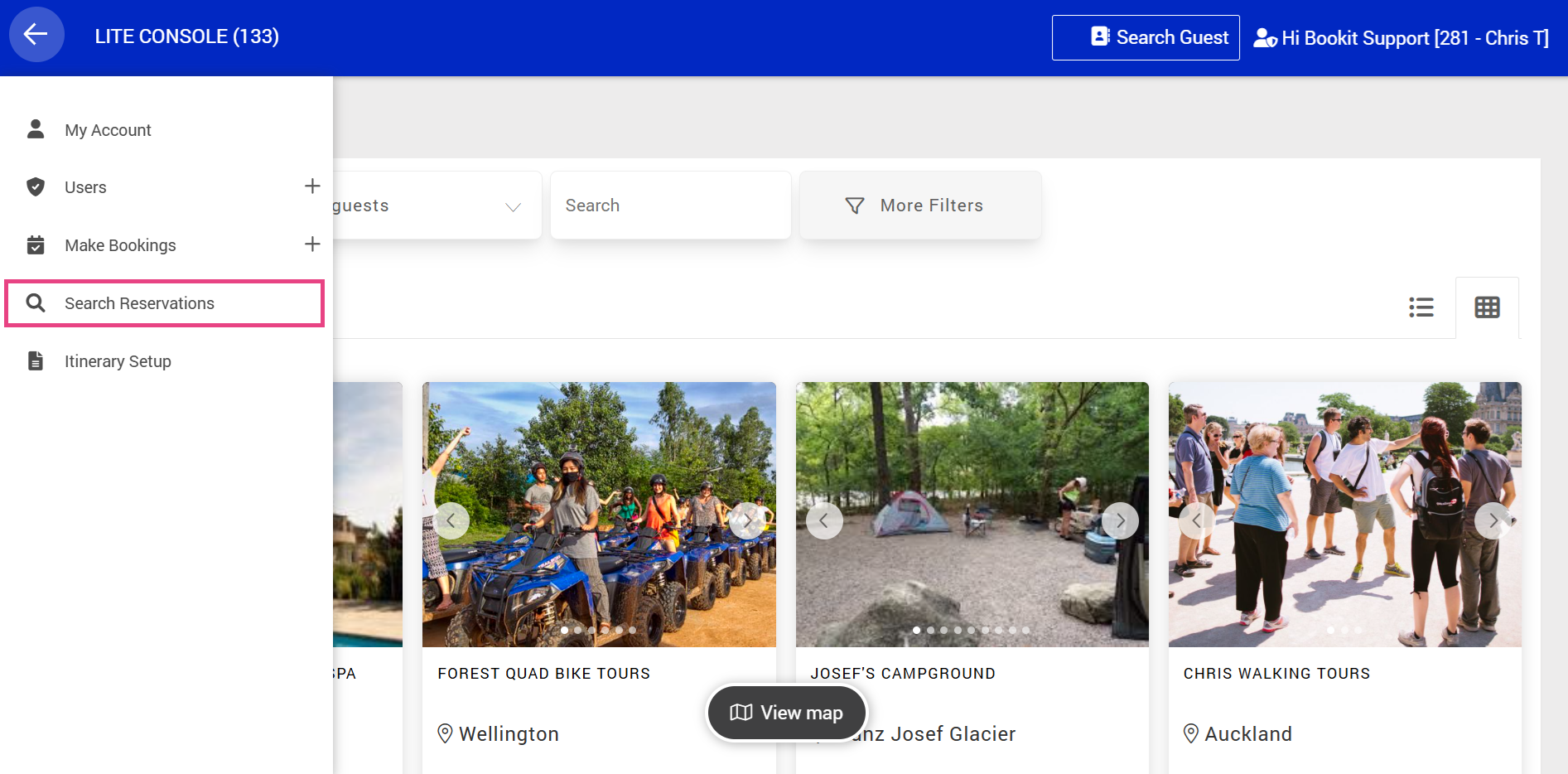
Searching for Reservations
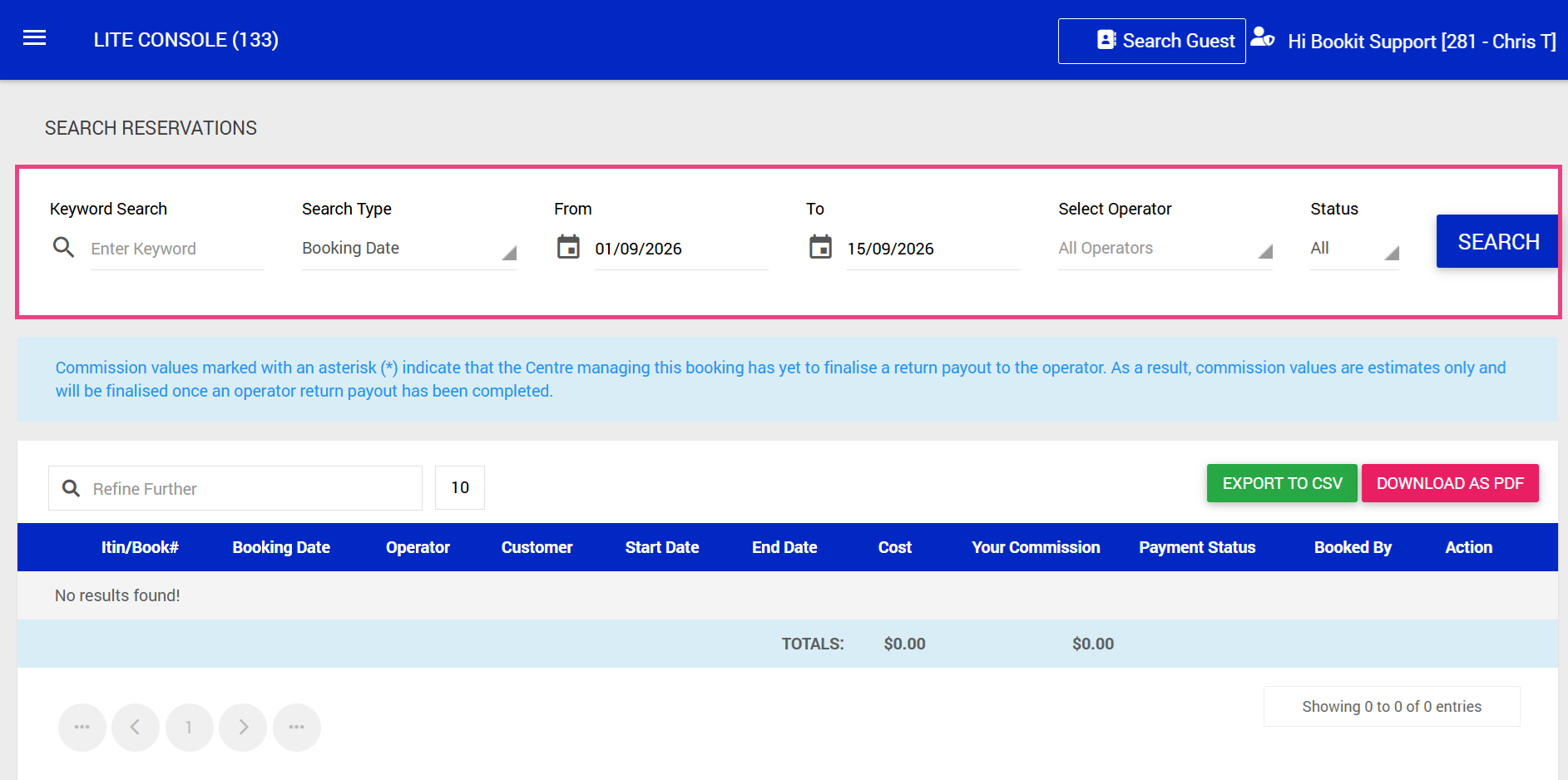
The Search Reservations page allows you to apply filters to narrow down the bookings displayed.
Available filters include:
- Keyword
- Booking Date
- Arrival Date
- Departure Date
- Stay Date
- Operator
- Booking Status
Once your filters have been applied, select Search to display the matching reservations.
Understanding the Search Results
The search results provide an overview of the bookings matching your selected criteria.
Available columns include:
- Itinerary / Booking Number
- Booking Date
- Operator
- Customer
- Start Date
- End Date
- Cost
- Your Commission
- Payment Status
- Booked By
- Action
Exporting Search Results
The reservation search results can be exported for further review or reporting.
Available export options include:
- CSV: Exports the report data into a CSV file, which can be opened in programs such as Excel or Google Sheets.
- PDF: Downloads a PDF version of the report.