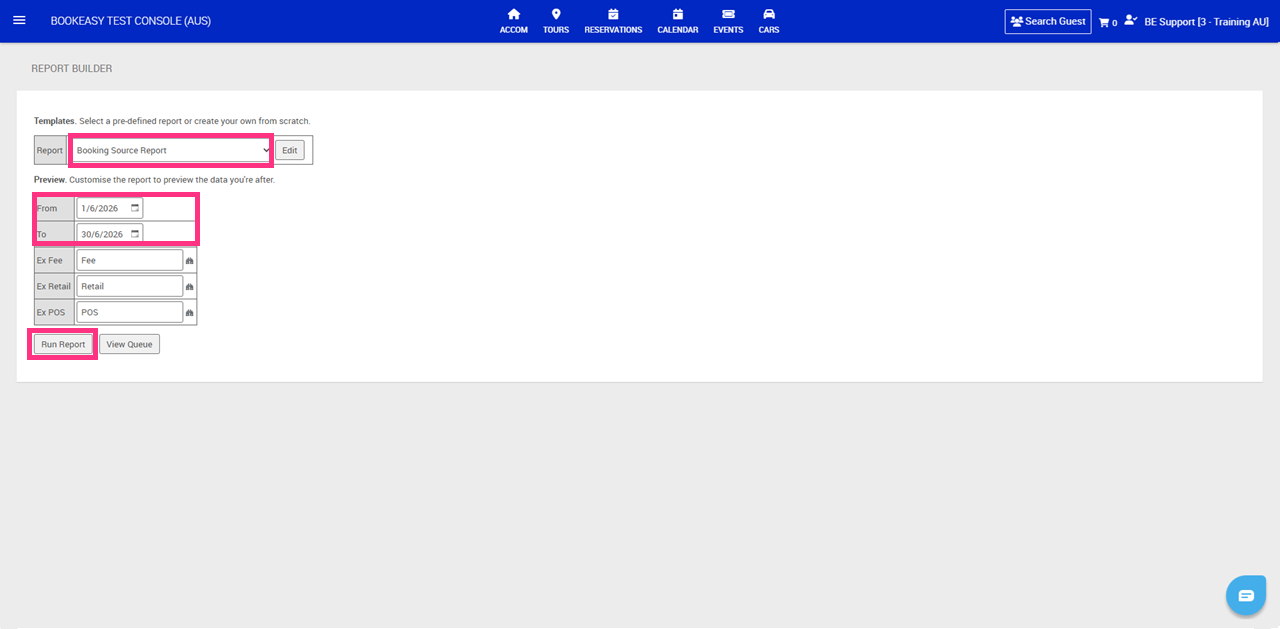
This article will show you how to build a Report Builder report that compares bookings and revenue across your booking sources, such as online and in-centre sales. You'll also learn how to include key metrics like pax numbers, lead time, and booking type (for example, accommodation or tours). Once configured, this report provides valuable insights into booking trends and sales performance across your channels.
Create a Custom Report
1. From the left-hand menu, navigate to Reporting and select Report Builder.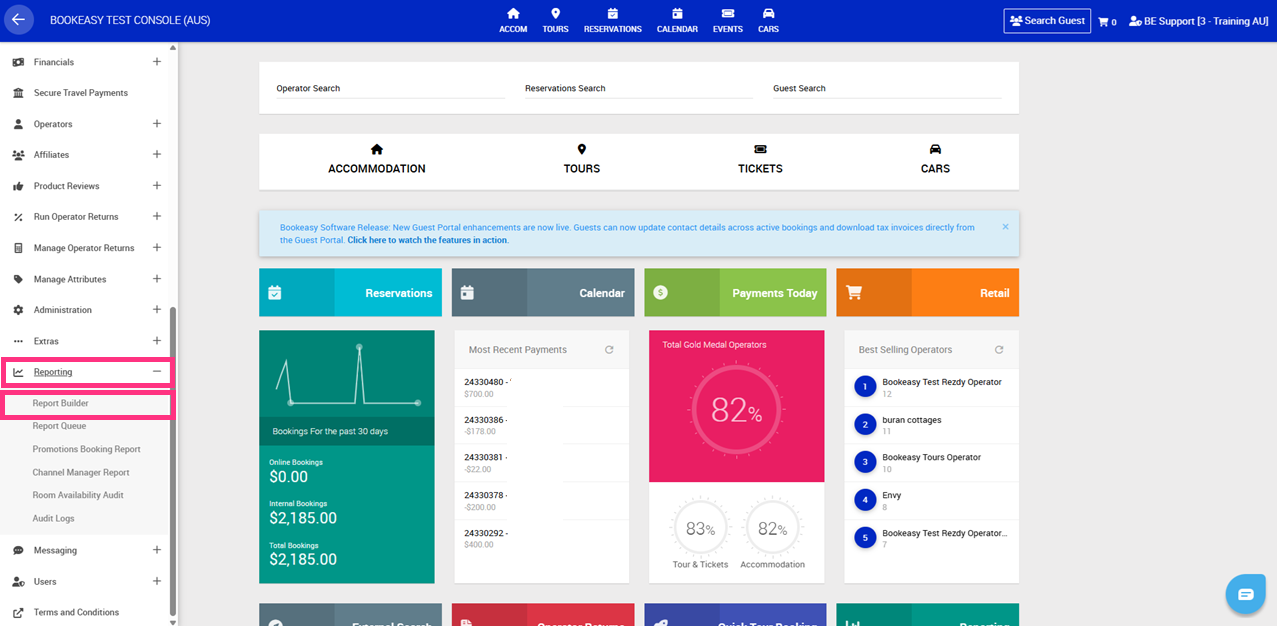
2. In the Report drop-down, select Create a New Custom Report, then click Edit.
3. In the General tab, complete the following:
- Name: Booking Source Report (recommended)
- Description: Enter a description that will help you identify the report later. (Optional)
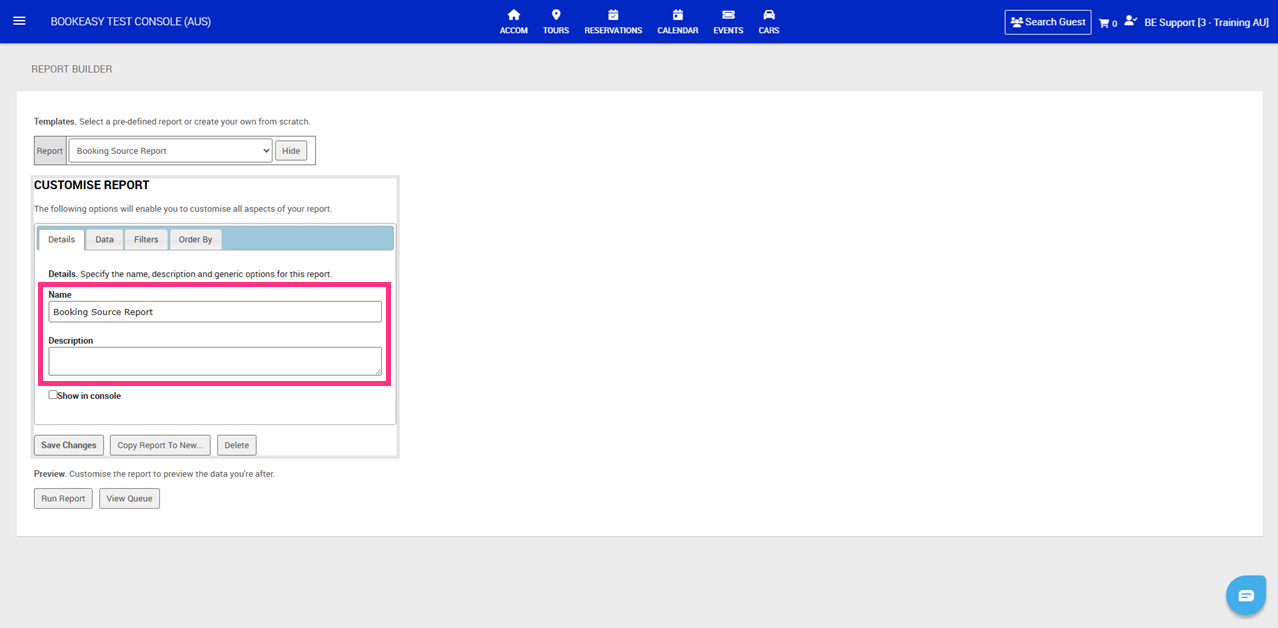
4. Once you've completed the General tab, click the Data tab at the top of the page.
5. In the Data tab, click Add Column to begin building your report. You'll need to create seven columns by completing the Table, Column, Aggregate, and Alias fields for each one. Use the table below to configure each column exactly as shown.
| Table | Column | Aggregate | Alias |
| Controls | Name | Destination | |
| Bookings | BookingID | Count | Bookings |
| Bookings | Cost | Sum | Revenue |
| Pax | PaxID | Count | # Pax |
| Bookings | LeadTime | Avg | Lead Time |
| Operators | Type1 | Operator Type | |
| Itineraries | BookingLocation | Booking Source (Location) |
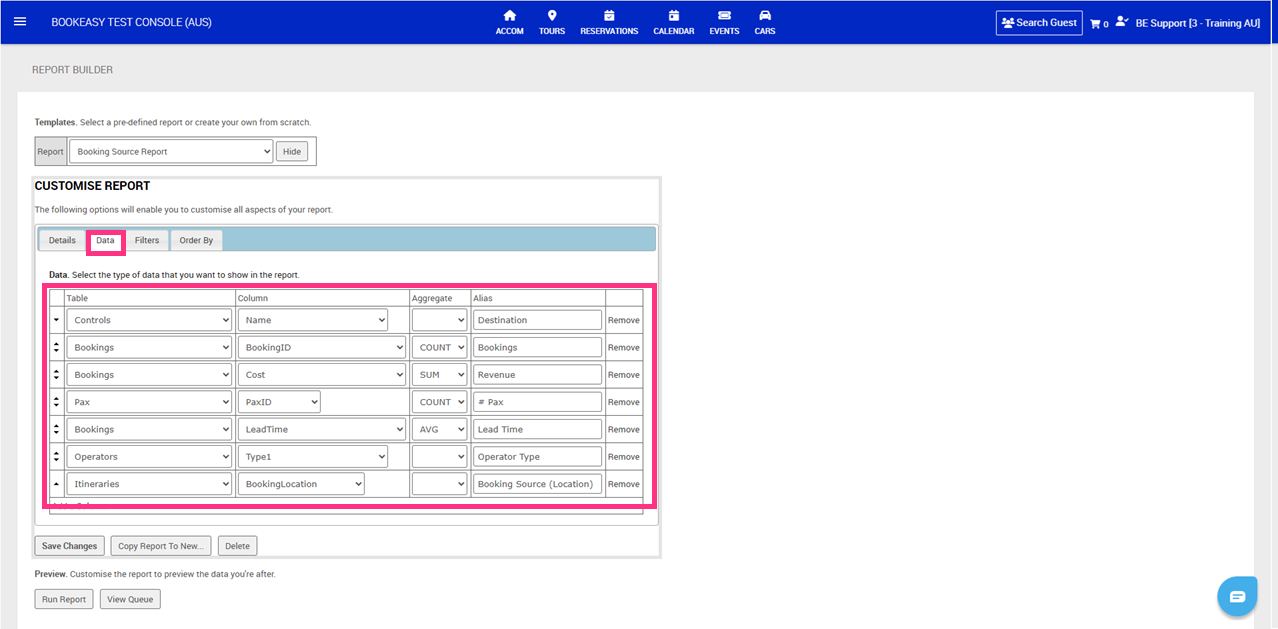
6. Once you've completed the Data tab, click the Filters tab at the top of the page.
7. Configure the report by adding the filters shown in the table below.
| Table | Column | Comparison | Alias | Default Value |
| Bookings | BookingDate | GreaterThanOrEqualTo | From | Yesterday |
| Bookings | BookingDate | LessThanOrEqualTo | To | Yesterday |
| Bookings | Type | NotEqualTo | ExFee | Fee |
| Bookings | Type | NotEqualTo | ExRetail | Retail |
| Bookings | Type | NotEqualTo | ExPOS | POS |
| Bookings | Status | NotEqualTo | Status | Cancelled |
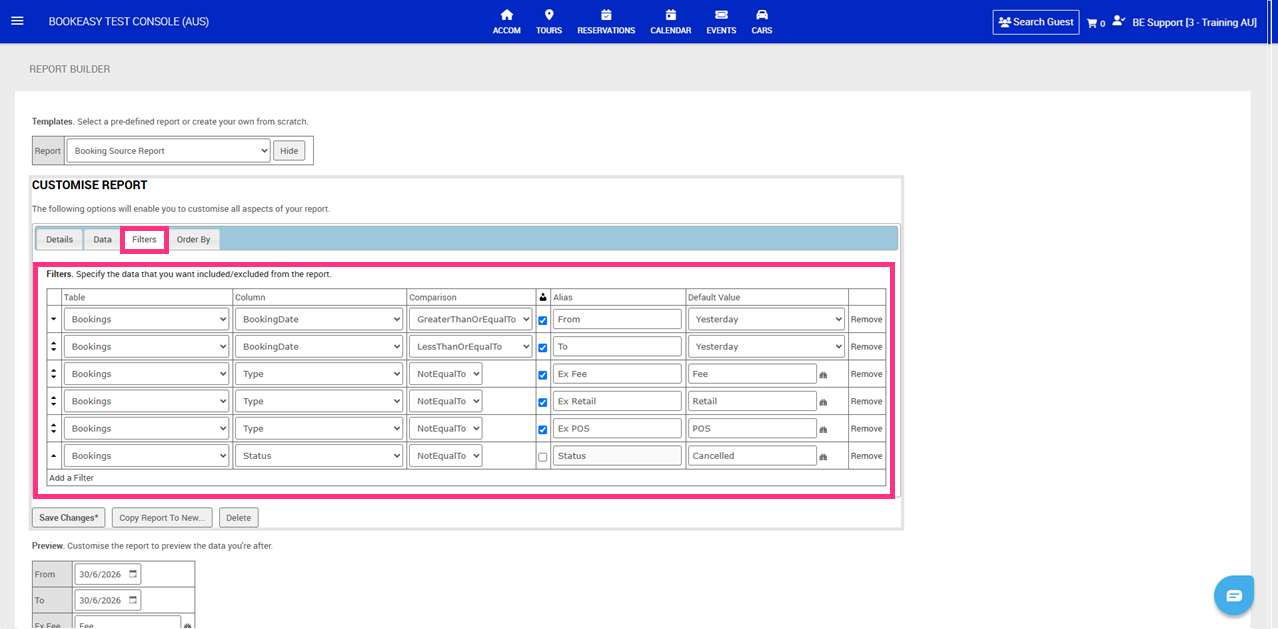
8. Once you've completed the Filters tab, click the Order By tab at the top of the page.
9. Click Add Order By. Configure the sorting using the following settings:
- Alias: Revenue
- Order: Descending
10. Click Save Changes
Generate Custom Report
1. From the left-hand menu, navigate to Reporting and select Report Builder.
2. Under the Report drop down, select your new report
3. Enter date range for you report
4. Click, Run Report