This guide explains how to upload, update and manage images for your accommodation rooms through your Bookeasy Operator Console. Room images are displayed on your Book Australia Marketplace listing and online booking channels, helping potential guests visualise your accommodation before making a reservation.
High-quality, up-to-date images are an important part of showcasing your accommodation. Including a variety of images that highlight your room's layout, furnishings, amenities and unique features helps guests make informed booking decisions and encourages more bookings.
Room Image Requirements
Room images represent your individual accommodation products, giving potential guests a clear understanding of what to expect when booking.
The first image is displayed as the primary (hero) image for your room, while additional images allow guests to explore the accommodation in more detail.
For best results, we recommend:
- File Format: JPEG
- Image Orientation: Landscape
- Recommended Dimensions: 800 × 500 pixels
- Minimum Resolution: 72 dpi
- Image Quality: Clear, well-lit photographs that accurately represent the room.
- Minimum of 3-5 images required
Tip: Choose your best photograph as the primary image. This is the first image potential guests will see when viewing your accommodation.
Adding Room Images
1. From your Operator Console, open the left-hand navigation menu (three horizontal lines in the top-left corner).
2. Navigate to Inventory > Rooms & Rates.
3. A list of your active accommodation rooms will be displayed.
4. Locate the room you wish to add or update images for and click Edit under the Images column.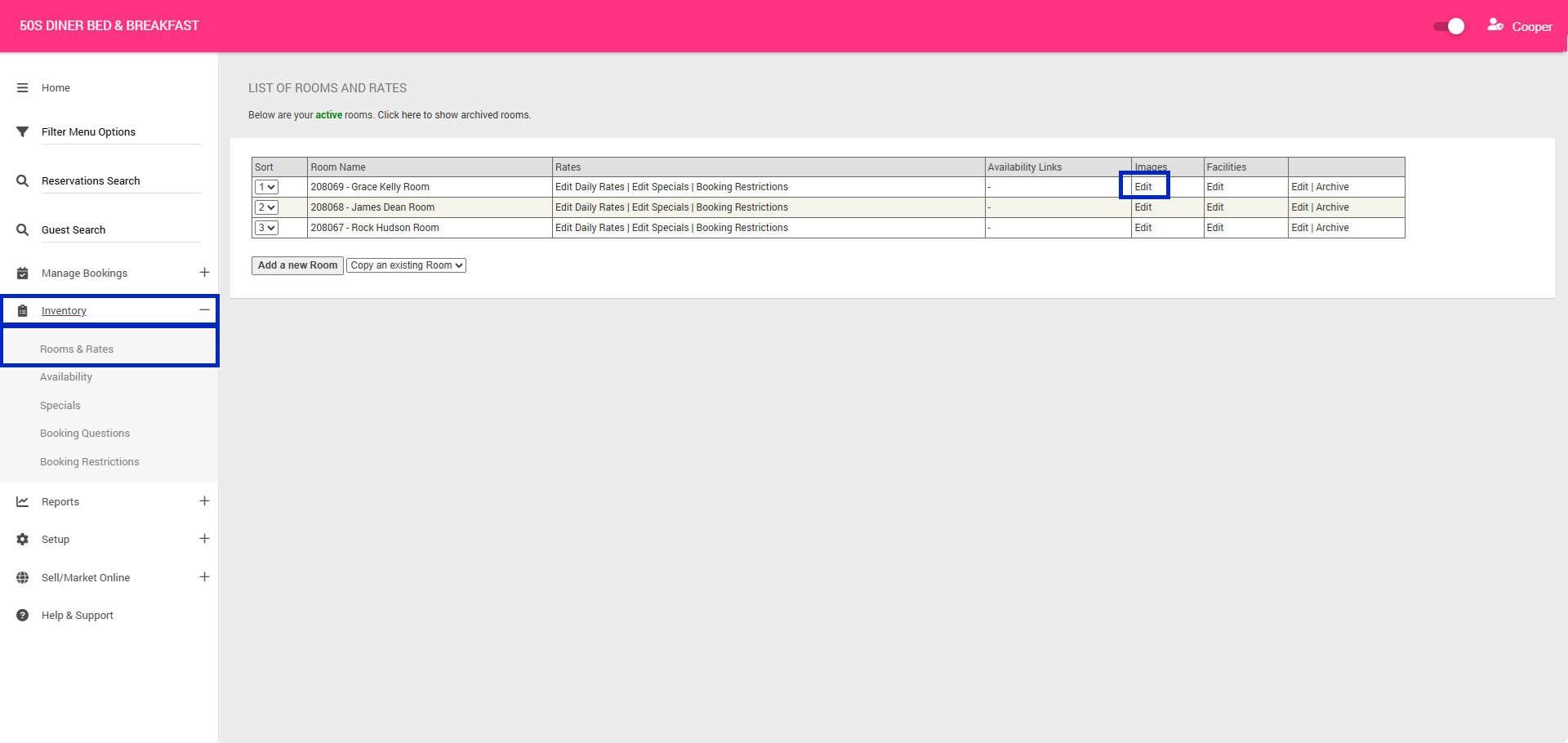
5. You will be directed to the Images tab for your selected room.
6. Click Drop files here or click to upload.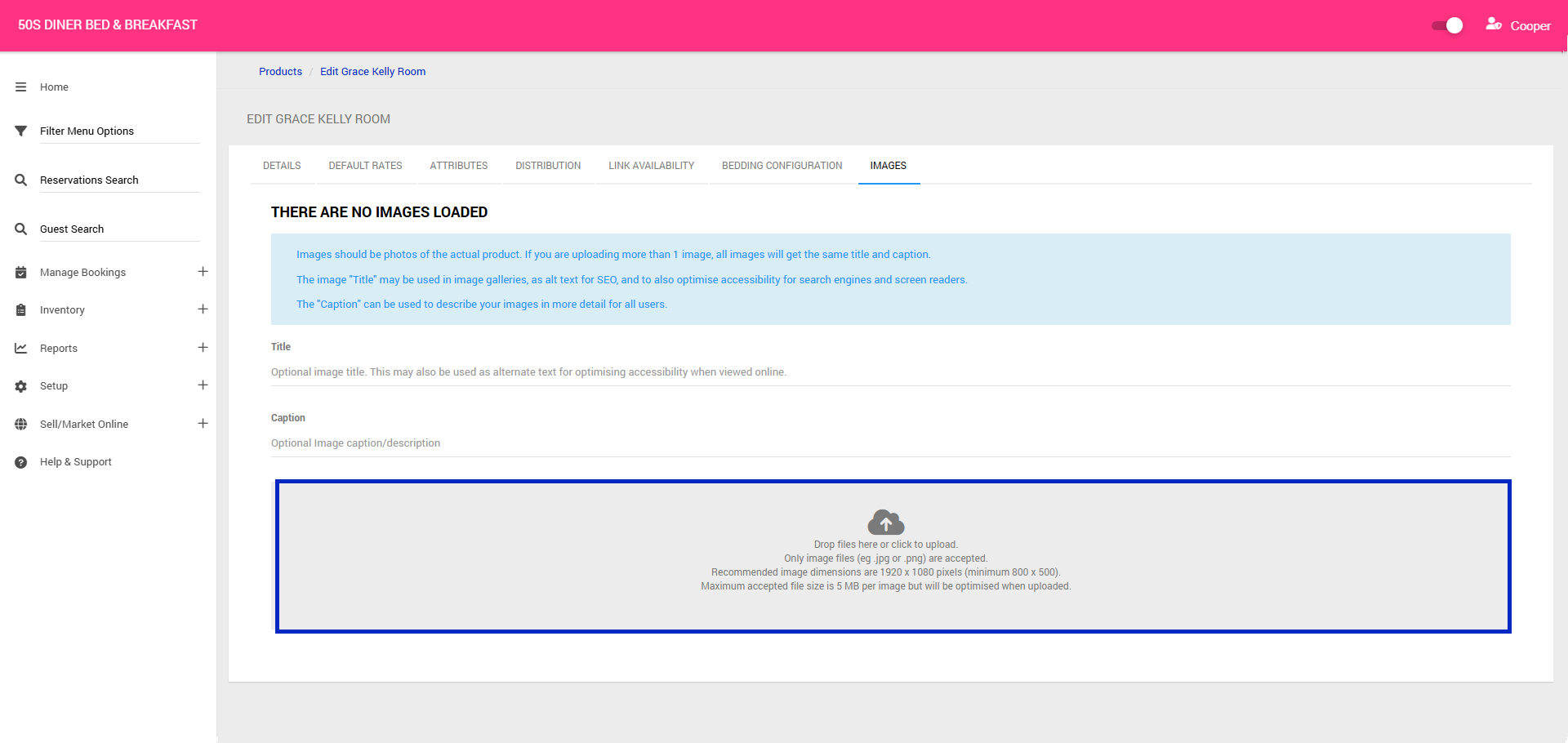
7. Select the images you wish to upload from your computer. You can select multiple images at once.
8. Once your images have uploaded, click View Image List to review your existing images.
9. To upload additional images, click Select More Images and repeat the process.
Editing Image Details
You can add a title and caption to your uploaded images to provide additional information about the room.
1. From the View Image List screen, locate the image you wish to update.
2. Click the pencil icon on the right-hand side of the image.
3. Enter or update the Title and Caption as required.
4. Click Save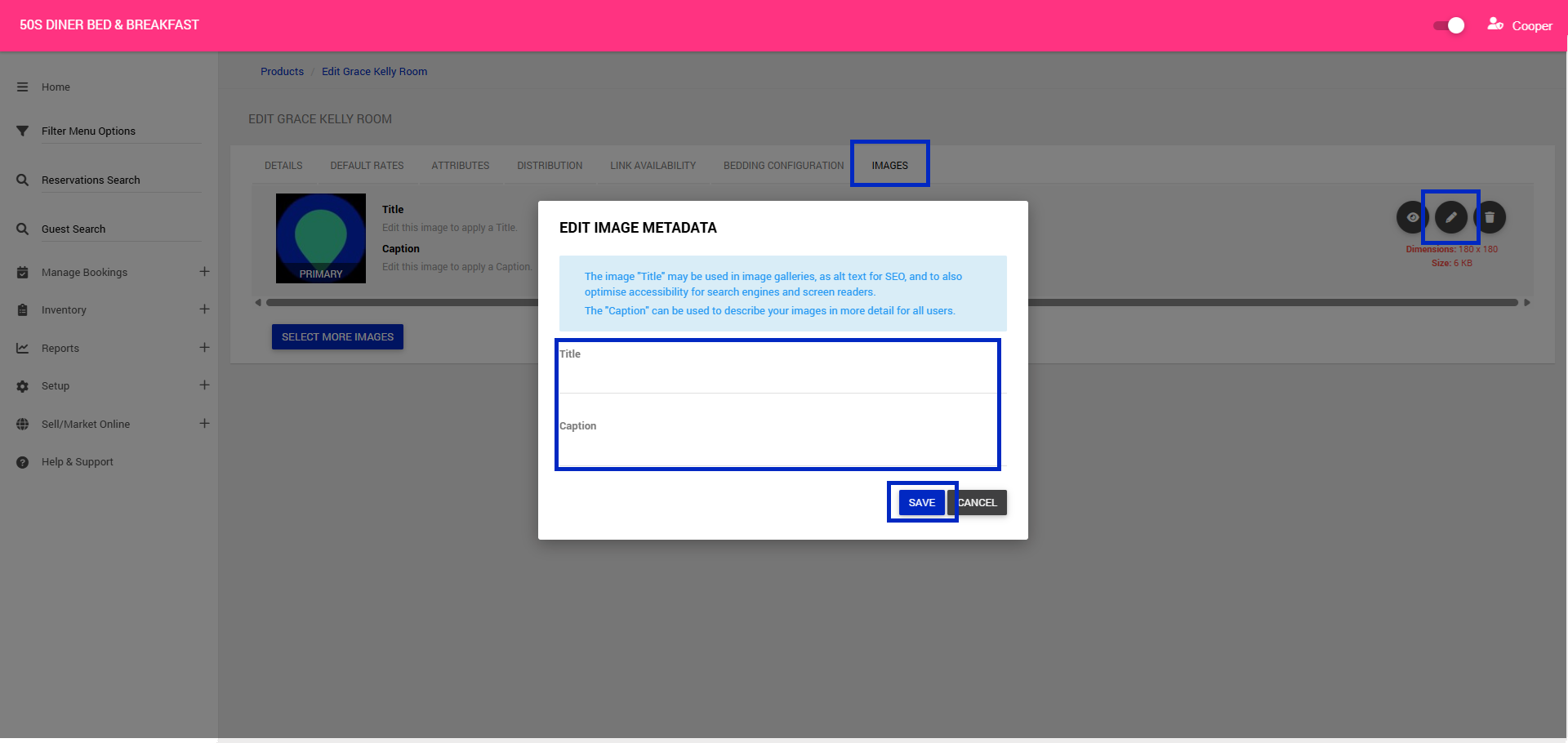
Tip: Use descriptive image titles and captions to highlight important room features, such as bedding configurations, views or amenities.
Reordering Room Images
The order of your images determines how they are presented to potential guests, with the first image used as the room's primary (hero) image.
To change the order:
1. From the View Image List screen, click Reorder Images.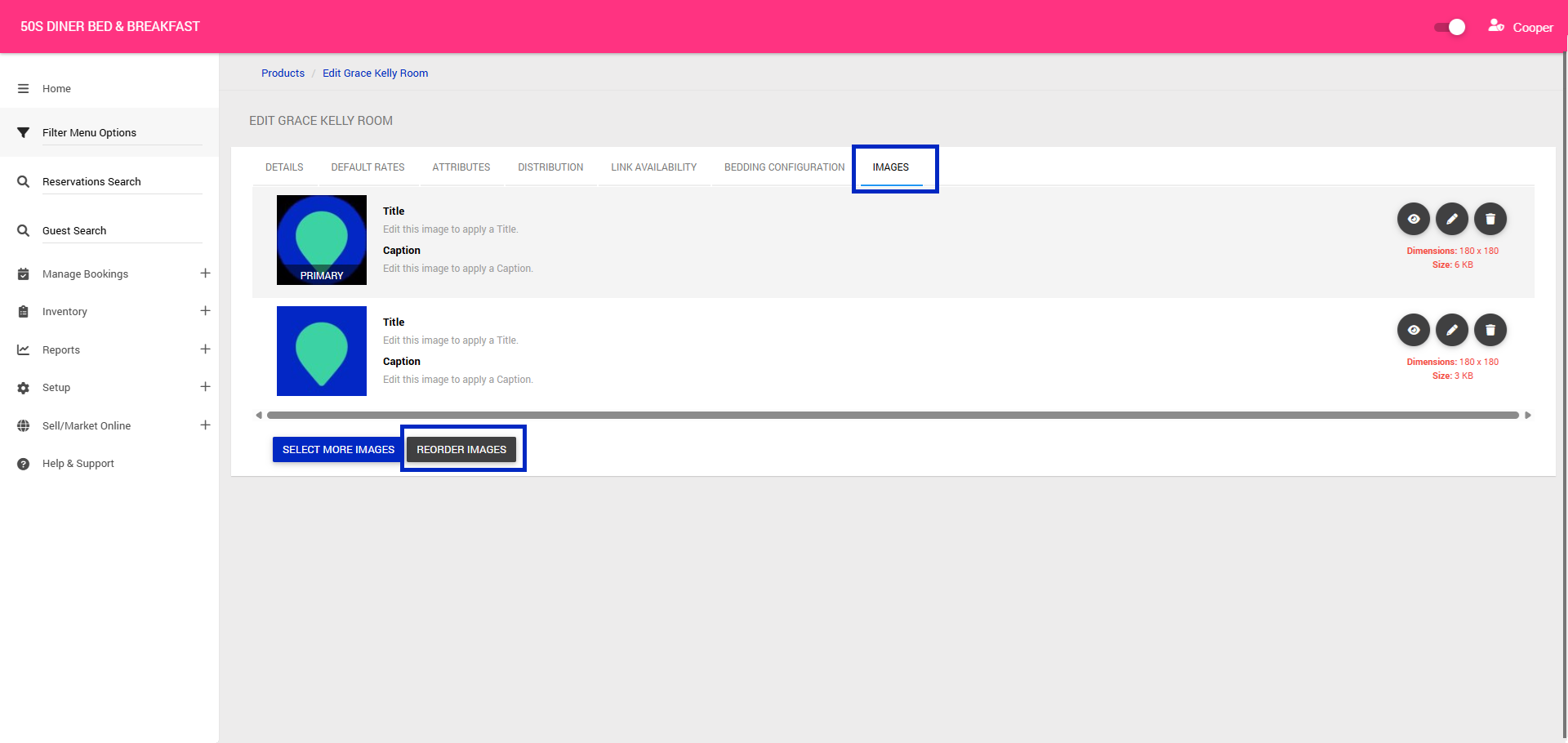
2. You will be directed to the image ordering screen.
3. Click and drag your images into your preferred order.
4. Position your preferred hero image first.
5. Click Update Order to save your changes.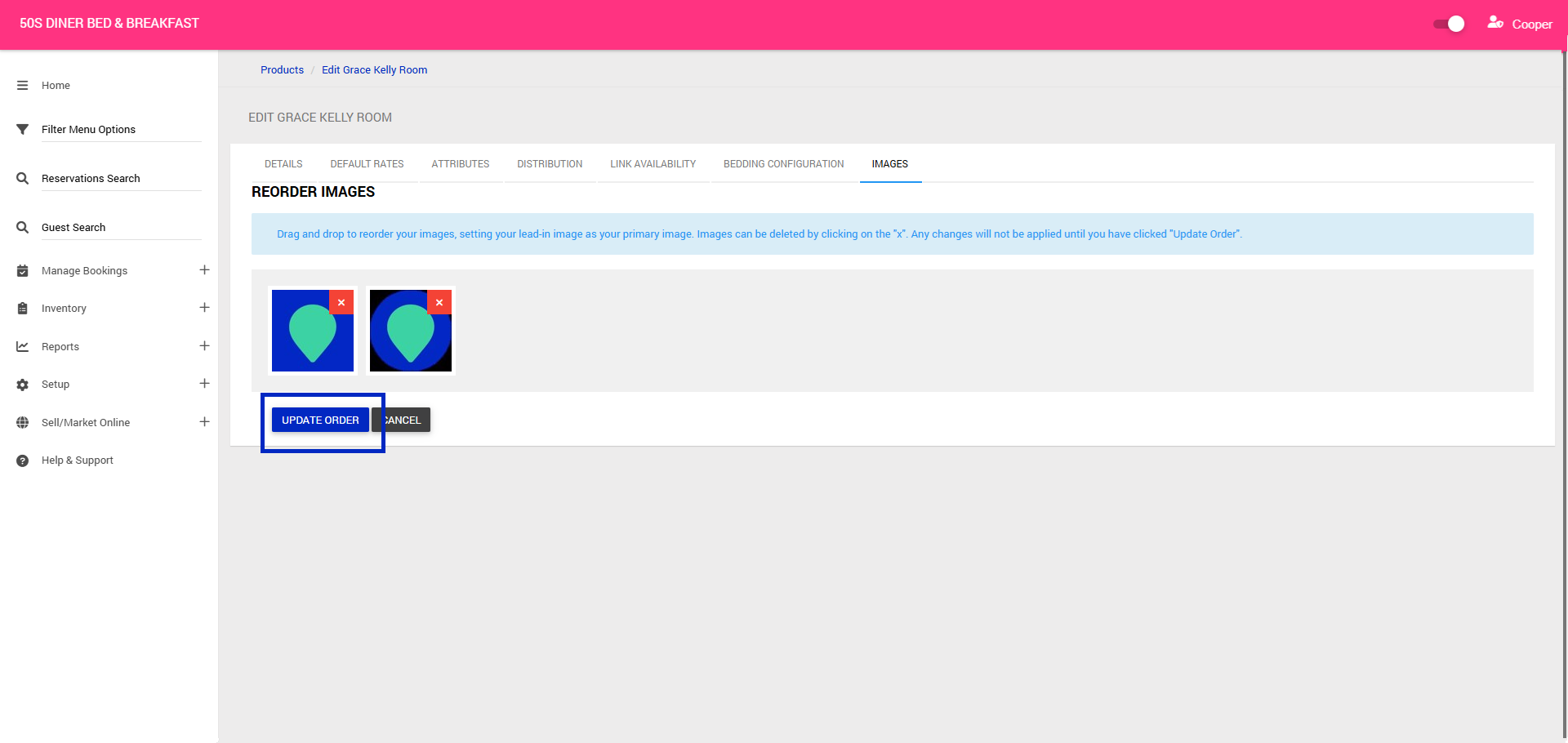
Your updated image order will now be reflected wherever your room images are displayed.