This guide explains how to create accommodation rate lines within your Bookeasy Operator Console. These rate lines act as placeholders for your Channel Manager to map to, allowing your room rates to be managed and updated through your connected system.
Important: Channel Manager Connections
All Group Operator listings will be connected to a Channel Manager, which will manage your room rates and availability once the connection is established.
Before connecting your Channel Manager, you will need to create the required rate lines for each room type, applying the appropriate minimum night stays across the entire year.
For example, if your room type offers minimum stays of 1, 3 and 7 nights, you will need to create three separate rate lines:
- Minimum 1-night stay
- Minimum 3-night stay
- Minimum 7-night stay
When creating these rate lines, you can enter a default rate, as the pricing will be overridden by your Channel Manager once connected.
These rate lines simply provide the structure for your Channel Manager to map and push your actual room rates into Bookeasy.
Note: Once your Channel Manager is connected, all future rate and availability updates should be managed through your connected Channel Manager.
The instructions below will guide you through creating the required rate lines in Bookeasy.
Once you have created all the required rate lines, please contact your Onboarding Consultant, who will guide you through the next steps to connect your Channel Manager.
Accessing Your Daily Rates
1. From your Operator Console, open the left-hand navigation menu (three horizontal lines in the top-left corner).
2. Navigate to Inventory > Rooms & Rates.
3. A list of your active accommodation rooms will be displayed
4. Locate the room you wish to update and select Edit Daily Rates under the Rates column.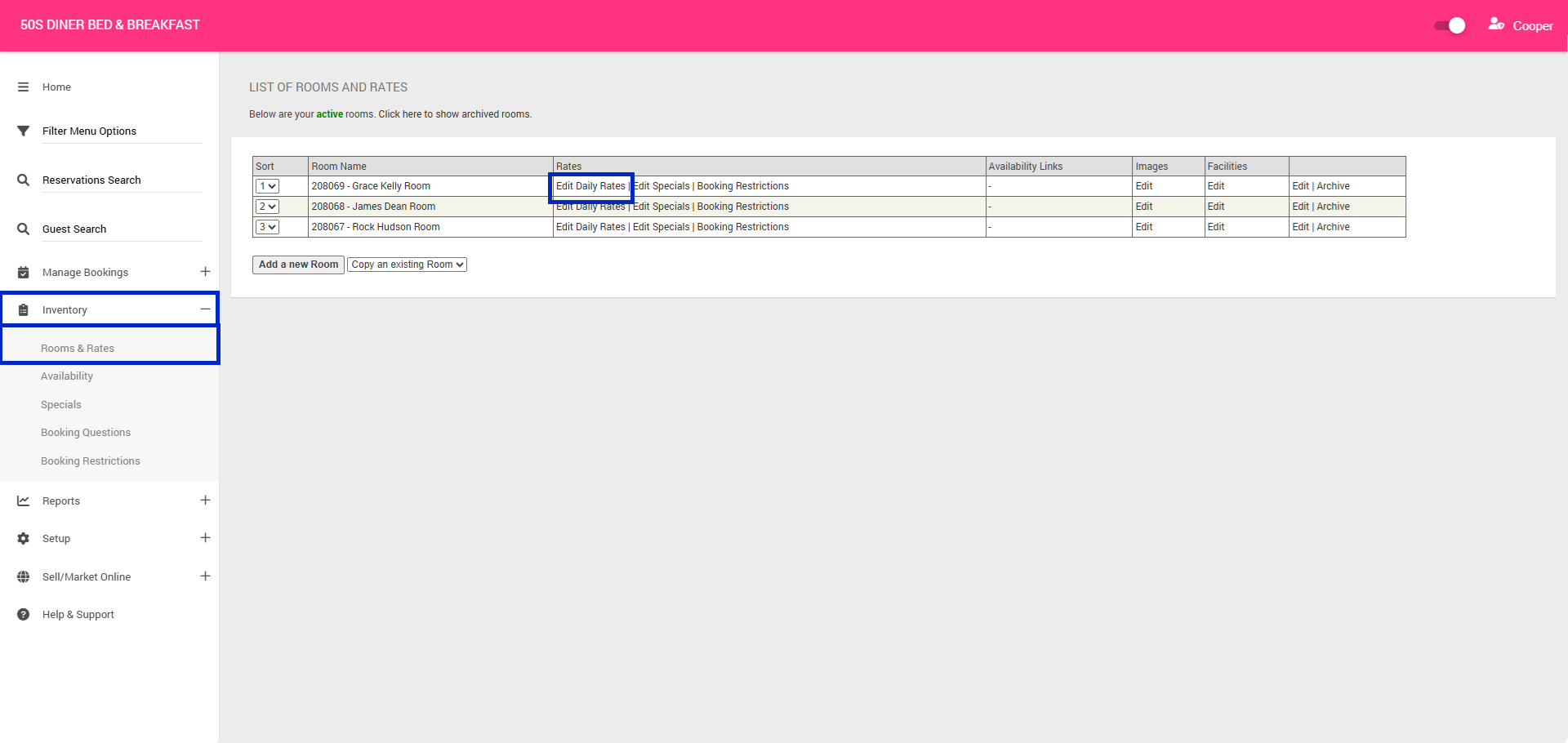
Adding a New Daily Rate
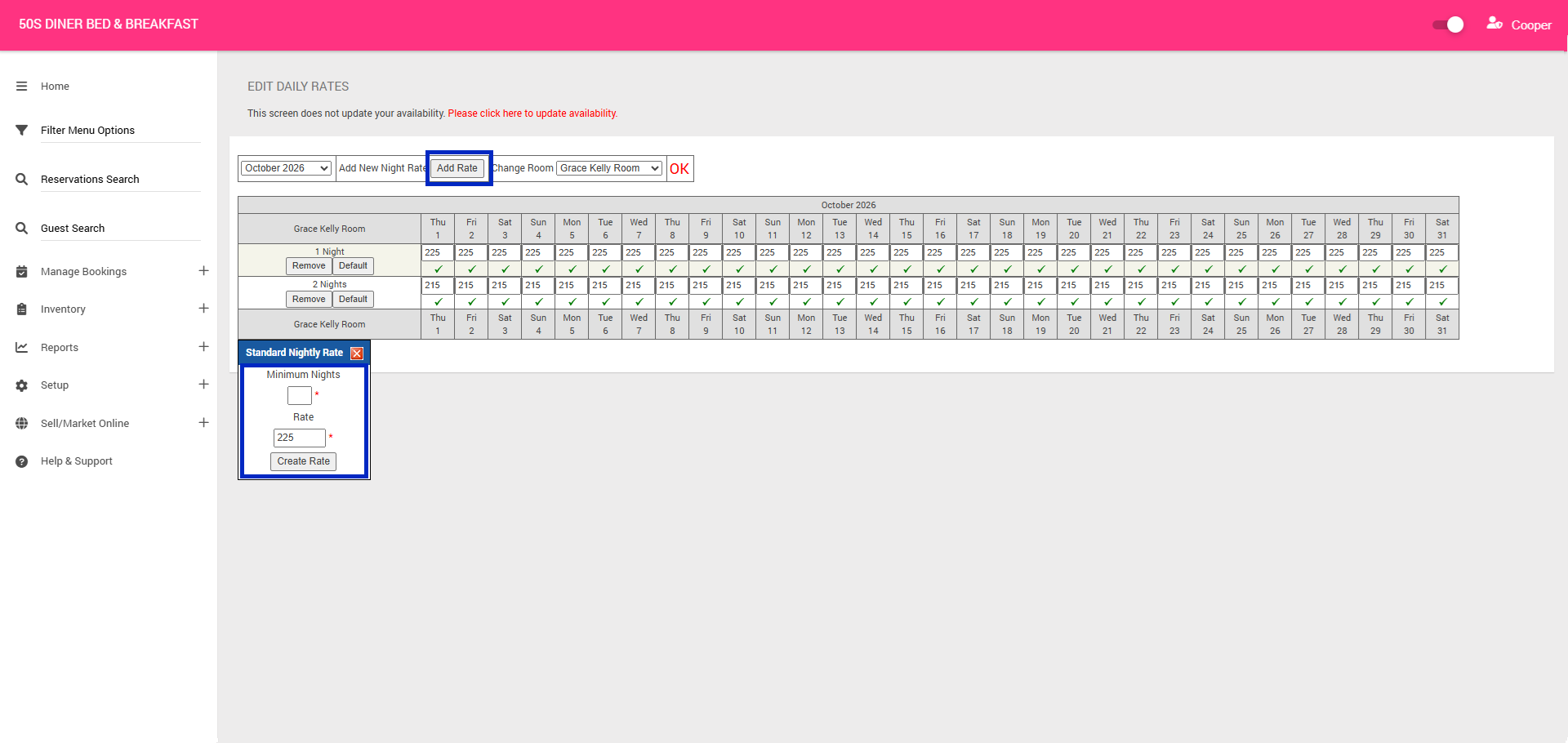
1. Click Add Rate.
2. Enter the Minimum Nights stay requirement.
3. Enter the Rate for the room.
4. Click Create Rate to save.
5. Repeat the above until all rate lines have been created.
6. Once you have created all the required rate lines, please contact your Onboarding Consultant, who will guide you through the next steps to connect your Channel Manager.